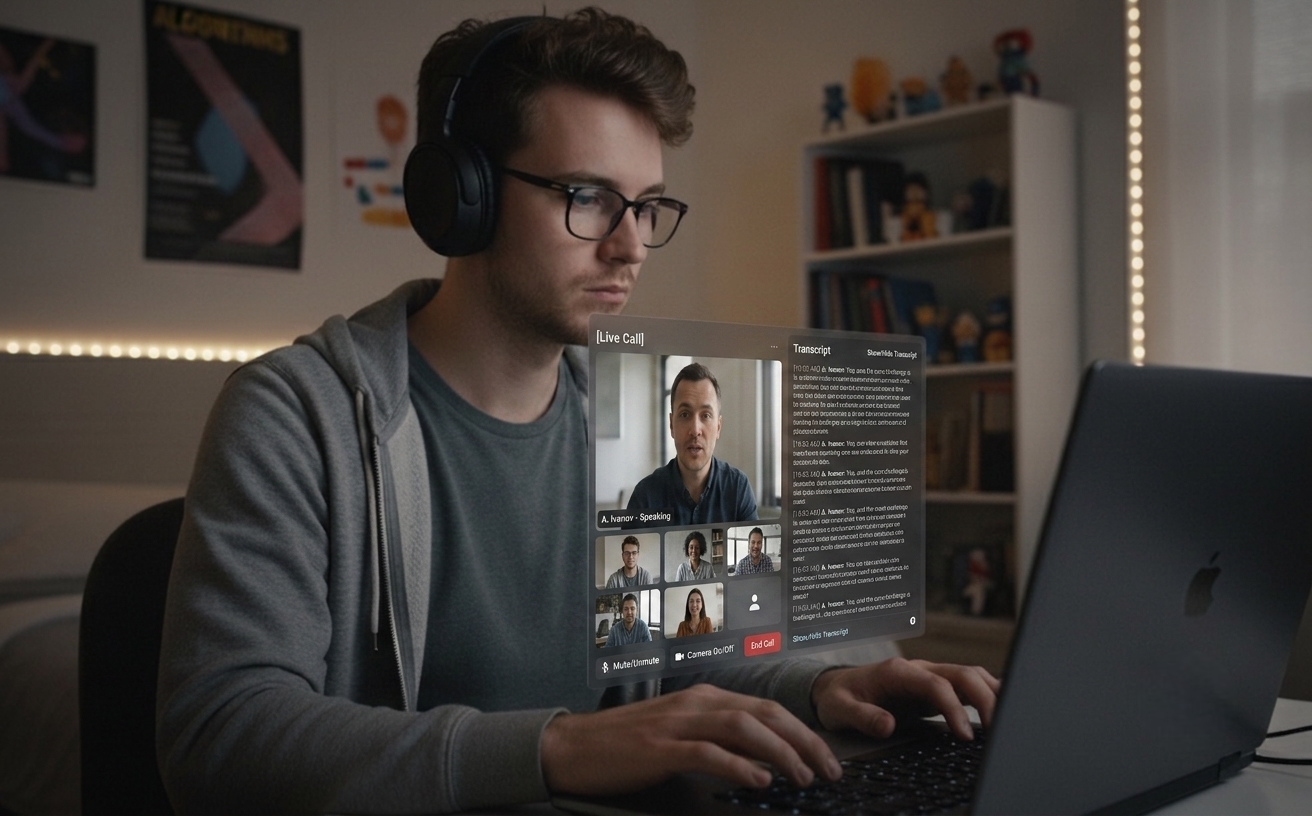
Las Sesiones de Audio en Vivo transcriben al otro lado de la llamada y generan respuestas cuando hacen una pausa — personalizadas con tu CV y la descripción del puesto. Activa el modo de transcripción silenciosa (⌘⇧L) para reuniones donde solo quieres una transcripción, sin sugerencias de IA. Tu lado de la llamada permanece privado.
FUNCIONA CON TODAS LAS PLATAFORMAS PRINCIPALESSesión en Vivo activaRespuesta de IA lista
Sesiones de Audio en Vivo (Pro)
Personalización CV + JD
Modo de Transcripción Silenciosa
Historial de Sesiones Local
16 idiomas de entrada + 16 de respuesta
Features
Para llamadas en vivo y la preparación previa.
Desde una captura rápida durante la preparación hasta una respuesta en vivo en plena llamada — la misma herramienta de escritorio sirve para entrevistas, reuniones y todo el trabajo alrededor.
01
Función estrella Pro
Sesiones de Audio en Vivo
Escucha la pregunta, obtén la respuesta
Presiona ⌘L para iniciar una sesión que captura la voz del otro lado desde el audio de tu sistema. Sus palabras aparecen como transcripción en vivo en el panel. Cuando hacen una pausa, Claude genera una respuesta hablada concisa (3–5 oraciones) — personalizada con tu CV y la JD. Funciona para entrevistas técnicas, rondas conductuales y cualquier reunión donde quieras una IA junto a la conversación. Tu propio micrófono nunca se captura en builds de producción, así que tu lado permanece privado.
02
Modo Reunión
Transcripción Silenciosa (⌘⇧L)
Transcripción primero, IA bajo demanda
Desactiva el auto-disparo (⌘⇧L) y Live Audio funciona como una herramienta de transcripción silenciosa — transcripción completa en el panel, sin respuestas de IA en cada pausa. Pulsa ⌘⇧⏎ para disparar una respuesta solo cuando realmente la quieras. Ejemplo: una revisión de diseño de 30 minutos en la que la transcripción corre todo el tiempo y solo consultas a la IA dos veces — una para un resumen de compromisos, otra para redactar el seguimiento.
03
Personalización
Respuestas conscientes del CV + JD
Respuestas con tu voz
Guarda tu CV y la descripción del puesto en el panel. Las respuestas de Audio en Vivo y los análisis de capturas se basan en tu experiencia real y las habilidades requeridas para el puesto. Los archivos se procesan en tu navegador — solo el texto extraído sale de tu dispositivo.
04
Auto-clasificado
Programación + General en un solo modo
Un atajo, todas las preguntas
Sin alternar modos. Claude inspecciona la captura y elige la forma adecuada — solución algorítmica completa con complejidad y código, o una respuesta directa de un párrafo para diseño de sistemas, matemáticas y preguntas conceptuales. Las preguntas conductuales / "Tell me about a time" llegan estructuradas en formato STAR (Situation / Task / Action / Result) en líneas separadas, con una probable pregunta de seguimiento para que puedas anticiparte a la siguiente.
05
Privacidad
Historial de Sesiones Local
Buscable, exportable, en el dispositivo
Cada sesión de Audio en Vivo se guarda automáticamente al finalizar — transcripción completa, traducciones y respuestas de IA — como plain JSON en el directorio estándar de datos de aplicación del sistema operativo (`~/Library/Application Support/interview-assistant/sessions/` en macOS, `%APPDATA%\interview-assistant\sessions\` en Windows). Solo local, nunca se sube; el cifrado en reposo lo proporciona el cifrado de disco a nivel del SO (FileVault en macOS, BitLocker en Windows). Presiona ⌘⇧H para abrir o cerrar la ventana de historial; el cuadro de búsqueda filtra todo el contenido de cada sesión (transcripciones, traducciones, sugerencias de IA) con resaltado de las coincidencias. Exporta cualquier sesión a Markdown o JSON para guardar tus notas.
06
Localización
Traducción en línea + 16 idiomas
Listo para entrevistas multilingües
¿El entrevistador pregunta en inglés mientras tienes configurado coreano? Aparece una traducción en línea bajo su línea de transcripción, solo cuando el idioma de origen difiere de tu idioma objetivo. Las respuestas de IA llegan en el idioma elegido entre inglés, coreano, japonés, chino, hindi, alemán, español, francés, portugués, ruso, vietnamita, tailandés, indonesio, árabe, italiano y neerlandés.
Keyboard
Flujo de trabajo con teclado
Controla todo con atajos de teclado. No se necesita ratón para una operación completamente sigilosa.
Atajos universales
Capturar^S
Captura de área^⇧S
Analizar captura^Return
Reiniciar^O
Ocultar^H
Sesión de Audio en Vivo (Pro)^L
Disparo automático on / off (en Vivo)^⇧L
Disparar ahora (en Vivo)^⇧⏎
Cerrar panel En Vivo^⇧W
Abrir Historial de Sesiones^⇧H
Cerrar sesión^⇧O
Salir de la aplicación^Q
Navegación
Mover ventanas^↑↓←→
Ajustar opacidad^[/]
Posicionamiento en esquinas^1-4
Settings
Abrir Settings^P
Cambiar lenguaje de programación^⇧↑/↓
Cambiar idioma de respuesta^⇧←/→
Cambiar idioma de entrada (Audio en Vivo)^Alt+←/→
Pro
Ctrl+L
Sesiones de Audio en Vivo (Función Pro)
Transcribe continuamente la voz del otro lado desde el audio de tu sistema — funciona tanto para entrevistas como para reuniones. Las respuestas de IA se generan automáticamente cuando hacen una pausa; desactívalo con Ctrl+⇧L para reuniones silenciosas. Presiona Ctrl+L para iniciar o detener la sesión. Bloquea el idioma hablado con Ctrl+⌥←/→ — fijarlo a uno de los 16 idiomas soportados evita que los acentos marcados hagan que la detección cambie a mitad de sesión. Tu propio micrófono no se captura en builds de producción.
Solo Pro. Transcripciones solo locales (plain JSON, nunca se suben). macOS 13+ vía ScreenCaptureKit, Windows 10+ vía WASAPI loopback.
Plans
Precios simples para todos
Comienza gratis y escala según tu éxito. Sin cargos ocultos, cancela cuando quieras.
Todos los planes incluyen nuestras funciones principales. Cambia de plan en cualquier momento.
Download
Configúralo en minutos
Descarga Quiet Assistant — Sesiones de Audio en Vivo para entrevistas y reuniones, respuestas personalizadas con CV y análisis de capturas auto-clasificado. Disponible para Windows y macOS.
Última versión · May 13, 2026 · Gratis para empezar
Latest: input language lock for Live ASR (16 languages, ⌘⌥←/→), 3s chunking for fast speakers, multi-monitor screenshot follows the focused window
01
macOS
macOS 13+ Universal
Live Audio Sessions via macOS ScreenCaptureKit. Resume + JD personalized answers.
02
Windows
Windows 10/11
Live Audio Sessions via Chromium WASAPI loopback. Resume + JD personalized answers.
After install
Pruébalo
Dos flujos, ambos en menos de dos minutos. Elige el que coincida con lo que realmente vas a usar.
01
Flujo de captura de pantalla
Abre cualquier problema visible — una página de LeetCode, un documento, un tuit — pulsa ⌘S para capturar, luego ⌘Return para analizar.
Inicia una llamada de Zoom o Meet contigo mismo, pulsa ⌘L y observa cómo la transcripción captura el audio del sistema. Pulsa ⌘⇧L para alternar el modo silencioso de reuniones.
Si encuentras algún problema, escríbenos a hello@uhzlab.com. Lo solucionaremos rápidamente para que puedas usarlo sin problemas cuando más importa. Tus comentarios siempre son apreciados.
What is Quiet Assistant?
Quiet Assistant is an AI-powered live copilot for interviews and meetings. It transcribes the other side's voice from your system audio in real time and generates Claude-powered answers when they pause, personalized with the user's resume and the role's job description. For meetings where AI replies on every pause would be noisy, an auto-trigger toggle (⌘⇧L) turns it into a quiet transcription tool with answers fired only on demand (⌘⇧⏎). It also analyzes screenshots of any problem on screen, auto-classifying them as coding (full code + complexity) or general (direct paragraph answer). The user's own microphone is not captured in production builds, keeping their side of the conversation private.
Key Features:
Live Audio Sessions (⌘L, Pro) — continuous transcription of the other side's voice, auto-generated answers
Quiet transcription mode (⌘⇧L off) for meetings — transcript without continuous AI replies
Trigger Now (⌘⇧⏎) — fire an AI answer manually only when wanted
Resume + JD personalized answers grounded in the user's real experience
Behavioral / "tell me about a time" answers structured in STAR format (Situation / Task / Action / Result) with a likely follow-up question
Local Session History (⌘⇧H toggle) — plain JSON on your device, never uploaded; full-text search across past sessions, export to Markdown or JSON
Auto-classified screenshot analysis — coding vs. general, no mode toggle
Multi-monitor screenshot — both ⌘S and ⌘⇧S follow the focused window's display, so the overlay always lands on the screen you're looking at
Input language lock for live ASR (⌘⌥←/→) — pin one of 16 supported languages so heavy accents don't flip mid-session; response language cycles independently with ⌘⇧←/→
Inline speaker-side translation across 16 languages, fired only when the input language differs from the response language
Production builds don't capture the user's mic — only the other side is transcribed
Multi-platform: macOS 13+ via ScreenCaptureKit, Windows 10+ via Chromium WASAPI loopback
How does Quiet Assistant work?
Quiet Assistant supports two complementary workflows in a single desktop app:
Live Audio workflow (interviews and meetings):
Press ⌘L (Pro) to start a Live Audio Session
The app captures the other side's voice from your system audio and shows a live transcript on the panel
For interviews: when they pause, Claude generates a 3–5 sentence answer using your saved resume and JD
For meetings: toggle auto-trigger off (⌘⇧L) — the panel becomes a quiet transcript tool; press ⌘⇧⏎ to fire an answer only when you actually want one
On session end, the full transcript and answers are auto-saved as plain JSON in your app's userData directory — never uploaded; open with ⌘⇧H
Your own microphone is not captured in production builds, so what you say never leaves your room
Screenshot workflow (visible problems):
Press ⌘S (full screen) or ⌘⇧S (area selection) to capture the problem — the capture follows your focused window's monitor on multi-display setups
Press ⌘Return to analyze — Claude auto-classifies the screenshot
Coding problems get full code, complexity analysis, and follow-up Q&A
General questions (system design, math, concept) get a direct paragraph answer with key points
Behavioral / "tell me about a time" prompts arrive in STAR format (Situation / Task / Action / Result) on separate lines, plus one likely follow-up question
Can I use Quiet Assistant during meetings?
Yes. Press ⌘L to start a Live Audio Session, then toggle auto-trigger off with ⌘⇧L. The transcript runs continuously on the side panel without firing AI replies on every pause. Press ⌘⇧⏎ ("Trigger Now") any time you want an AI answer on the recent transcript. Designed for stand-ups, design reviews, sales calls, customer interviews, and any meeting where you want a transcript and an occasional assist rather than continuous AI suggestions. The transcript is stored locally as plain JSON in your app's userData directory (⌘⇧H to review) — never uploaded; FileVault / BitLocker covers data-at-rest. Your own mic is never captured in production builds.
Quiet Assistant vs Other Interview Assistants
Quiet Assistant combines the live-audio answering of LockedIn AI / Final Round AI / InterviewCopilot.io with resume + JD personalization (a Beyz AI pattern), plus a quiet-transcription mode that makes it usable for ordinary meetings — not just interviews.
Differentiators:
Works for both interviews (continuous AI replies) and meetings (quiet transcription, AI on demand)
Live Audio Sessions on both macOS (ScreenCaptureKit) and Windows (Chromium WASAPI loopback)
Resume + JD personalization shared between Live Audio answers and screenshot analysis
Local-only session history with full-text search and Markdown / JSON export — plain JSON on your device, never uploaded
Input language lock for live ASR (16 languages) — pin one to keep heavy accents from flipping mid-session
Inline speaker-side translation that only fires when the input language differs from the response language
Flexible pricing: $10/week, $30/month, or $180/year ($15/month billed annually)
Single desktop app — no browser extension required
Powered by Claude Sonnet 4.5 with Haiku for translation and lightweight tasks
Quiet Assistant Pricing
Quiet Assistant offers both free and paid plans:
Free Plan:
Auto-classified screenshot analysis with blurred results
Test the complete workflow before subscribing
No Live Audio Sessions on the free tier
Pro Plans:
$10/week — fits short interview loops
$30/month — standard monthly billing
$180/year — works out to $15/month billed annually
3-day free trial on every Pro plan
Live Audio Sessions for interviews and meetings, resume + JD personalization, quiet-transcription mode, local session history, inline translation
16 input + 16 response languages
Unmetered usage within the plan
Email support
How to Install Quiet Assistant
Installing Quiet Assistant is simple and takes less than 2 minutes:
Installation Steps:
Download the installer from quietassistant.io
Run the installer (no administrator rights needed)
Complete the one-time Google authentication
Grant Screen Recording permission so the app can capture system audio (the other side's voice) for Live Audio Sessions
Save your resume and JD on the dashboard for personalized answers
Press ⌘L to start a Live Audio Session, or ⌘S to capture a screenshot
System Requirements:
macOS 13+ (Ventura) for Live Audio Sessions; macOS 10.15+ for the screenshot workflow only
Windows 10/11 for full Live Audio Sessions
4GB RAM minimum
Internet connection
500MB free disk space
Best AI Interview and Meeting Copilot 2026
Quiet Assistant is widely picked as a leading AI live-audio copilot in 2026 because it combines live answering for interviews, quiet transcription for meetings, resume-personalized responses — all in a single desktop app.
Why people pick Quiet Assistant in 2026:
Live Audio Sessions answer interviewer questions automatically — works on macOS and Windows
Quiet transcription mode (⌘⇧L off) makes the same tool usable for stand-ups, design reviews, and sales calls
Answers grounded in the user's real resume and the role's job description
Local-only session history (plain JSON) — never uploaded
Inline translation only when the other side's language differs from the user's target
Flexible pricing: $10/week, $30/month, or $180/year for short or long usage
Screenshot workflow works alongside HackerRank, CodeSignal, CoderPad, LeetCode OA, and any browser-based platform
What AI model does Quiet Assistant use?
Quiet Assistant is powered primarily by Claude Sonnet 4.5 (Anthropic) for answer generation in both Live Audio Sessions and screenshot analysis. Claude Haiku 4.5 handles lightweight inline translation. Audio transcription uses OpenAI's gpt-4o-transcribe (chunked streaming, sub-second latency). Claude is known for superior reasoning and code generation — ideal for technical interview answers under time pressure.
Quiet Assistant pricing and plans 2026
Quiet Assistant offers a free trial and three Pro tiers: $10 for a week, $30 for a month, or $180 for a year (works out to $15/month when billed annually). All Pro plans include Live Audio Sessions for interviews and meetings, resume + JD personalization, quiet-transcription mode, local session history (plain JSON, never uploaded), inline speaker translation, 16 input + 16 response languages, and unlimited usage.
How to prepare for Meta's AI-enabled coding interview?
Meta's AI-enabled coding interview (introduced in 2025) allows candidates to use AI tools like Claude Sonnet and GPT-4o during a 60-minute coding session in CoderPad. To prepare: practice using AI tools to solve algorithmic problems, learn to verify and explain AI-generated solutions, work on multi-file project structures, and practice time management across problem exploration, design, implementation, and optimization phases. Quiet Assistant's auto-classified screenshot analysis and Live Audio Sessions are ideal for simulating this format — capture the CoderPad problem with ⌘S for code generation, then use ⌘L during the design discussion.
What are Live Audio Sessions in Quiet Assistant?
Live Audio Sessions are Quiet Assistant's flagship Pro feature for live conversations — interviews, behavioral rounds, and meetings. Pressing ⌘L starts continuous capture of the other side's voice via system audio (ScreenCaptureKit on macOS 13+, Chromium WASAPI loopback on Windows 10+). The transcript is shown live on the side panel. When they pause, Claude Sonnet 4.5 generates a concise spoken answer (3–5 sentences) personalized with the user's saved resume and the target job description. Behavioral / "tell me about a time" prompts arrive structured in STAR format (Situation / Task / Action / Result) with one likely follow-up. Auxiliary shortcuts: ⌘⇧L toggles auto-trigger on or off (turn it off for quiet meetings), ⌘⇧⏎ ("Trigger Now") fires an answer on demand, ⌘⇧W closes the panel, ⌘⇧H toggles the local session history window (with full-text search across all past sessions and Markdown / JSON export), ⌘⌥←/→ cycles the input language to lock the spoken language onto one of 16 supported languages (so heavy accents don't flip mid-session), and ⌘⇧←/→ cycles the AI's response language separately. The user's own microphone is not captured in production builds. Transcripts of the other side's voice are stored locally as plain JSON in the OS's standard application-data directory (`~/Library/Application Support/interview-assistant/sessions/` on macOS, `%APPDATA%\interview-assistant\sessions\` on Windows) — never uploaded; data-at-rest is covered by your OS-level disk encryption (FileVault / BitLocker).
How does Quiet Assistant handle behavioral interview questions?
When Claude Sonnet 4.5 classifies a screenshot or live-audio question as behavioral / situational ("tell me about a time when...", "describe a conflict you...", "how did you handle..."), the answer arrives structured in STAR format on separate lines: Situation: the context, Task: the candidate's responsibility, Action: what they did, Result: the outcome. The whole STAR block stays around 5–7 sentences so it's scannable mid-interview rather than a wall of prose. Below the answer, a Follow-up: field carries one likely next question so the candidate can pre-empt it. The personalization layer pulls from the user's saved resume, so the Situation and Action draw on real experience rather than generic templates.
Can I search and export Live Audio session history?
Yes. Press ⌘⇧H to toggle the Session History window — a second press closes it. The search bar above the session list filters across every session's full event body (interviewer transcripts, your own transcripts when present, inline translations, AI suggestions) and surfaces a small italic snippet with the matched substring highlighted. Typing debounces at 200ms; ESC clears the query first, then closes the window. Each session detail has Export Markdown / Export JSON buttons next to Delete: Markdown is human-readable with timestamps, role headings, and translations as block-quotes; JSON is the raw session record for piping into your own tooling. Sessions live as plain JSON in the app's userData directory — exports go through the OS file dialog and write to disk only; nothing is uploaded.