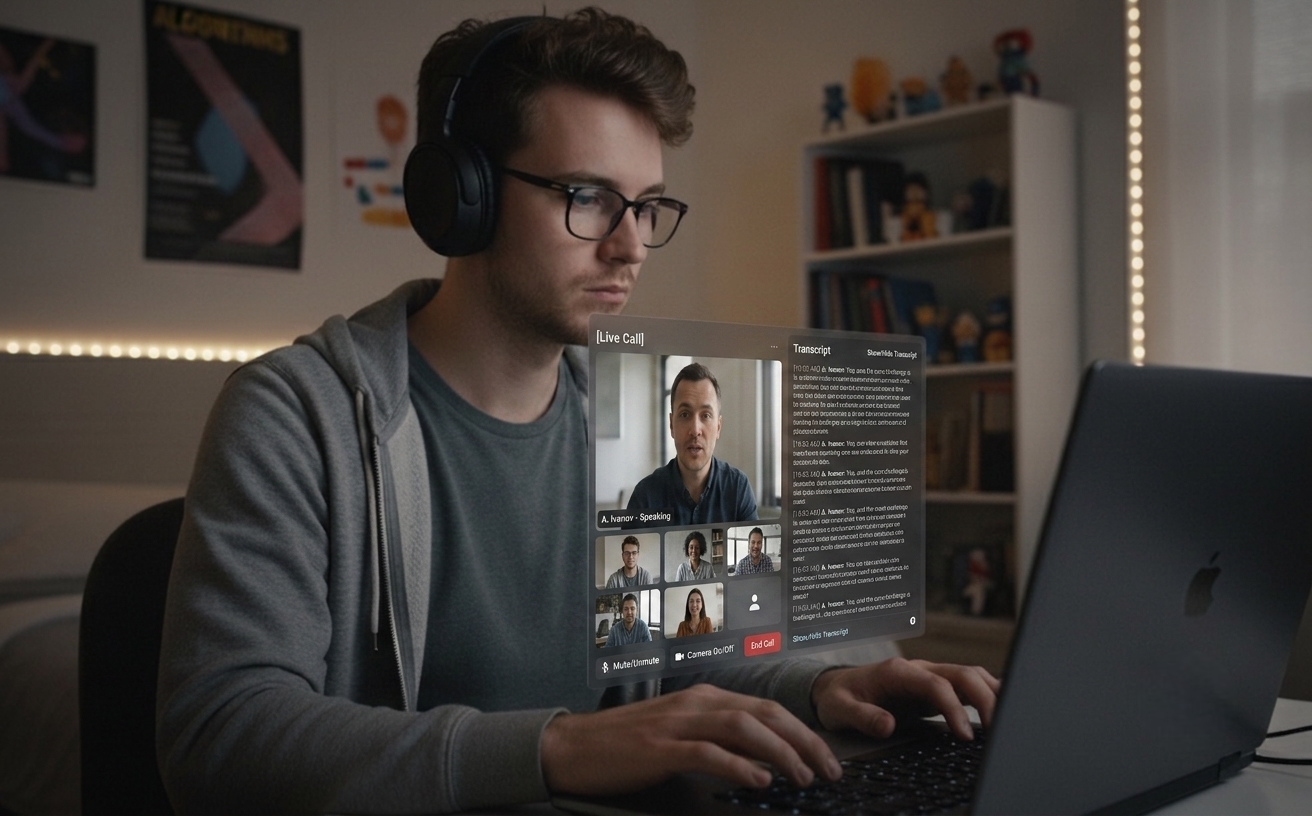
सभी प्रमुख प्लेटफॉर्म के साथ काम करता हैलाइव सेशन सक्रियAI जवाब तैयार
लाइव ऑडियो सेशन्स (Pro)
रिज़्यूमे + JD पर्सनलाइज़ेशन
शांत ट्रांसक्रिप्शन मोड
लोकल सेशन हिस्ट्री
16 इनपुट + 16 रिस्पॉन्स भाषाएं
Features
लाइव कॉल और उसकी तैयारी के लिए।
तैयारी के दौरान एक त्वरित स्क्रीनशॉट से लेकर कॉल के बीच में लाइव जवाब तक — एक ही डेस्कटॉप टूल इंटरव्यू, मीटिंग और उसके आस-पास के काम सब के लिए फिट है।
01
Pro फ्लैगशिप
लाइव ऑडियो सेशन्स
सवाल सुनिए, जवाब पाइए
⌘L दबाएं और एक सेशन शुरू करें जो आपके सिस्टम ऑडियो से कॉल के दूसरे पक्ष की आवाज़ कैप्चर करता है। उनके शब्द पैनल पर लाइव ट्रांसक्रिप्ट के रूप में दिखते हैं। जब वे पेज़ करते हैं, Claude एक संक्षिप्त बोलने लायक जवाब (3–5 वाक्य) तैयार करता है — आपके रिज़्यूमे और JD के अनुसार पर्सनलाइज़्ड। तकनीकी इंटरव्यू, बिहेवियरल राउंड और किसी भी मीटिंग के लिए काम करता है जहां आप बातचीत के साथ AI चाहते हैं। आपका अपना माइक प्रोडक्शन बिल्ड में कभी कैप्चर नहीं होता, इसलिए आपका पक्ष निजी रहता है।
02
मीटिंग मोड
शांत ट्रांसक्रिप्शन (⌘⇧L)
ट्रांसक्रिप्ट पहले, AI मांग पर
ऑटो-ट्रिगर बंद करें (⌘⇧L) तो लाइव ऑडियो एक शांत ट्रांसक्रिप्शन टूल बन जाता है — पैनल पर पूरा ट्रांसक्रिप्ट, हर पॉज़ पर AI जवाब नहीं। ⌘⇧⏎ दबाकर सिर्फ़ ज़रूरत होने पर ही AI जवाब ट्रिगर करें। उदाहरण: 30-मिनट का डिज़ाइन रिव्यू — ट्रांसक्रिप्ट पूरे समय चलता है और आप AI को सिर्फ़ दो बार पुकारते हैं (एक बार ट्रेड-ऑफ़ सारांश के लिए, एक बार फ़ॉलो-अप ईमेल ड्राफ्ट के लिए)।
03
पर्सनलाइज़ेशन
रिज़्यूमे + JD अवेयर जवाब
आपकी आवाज़ में जवाब
अपना रिज़्यूमे और रोल का जॉब डिस्क्रिप्शन डैशबोर्ड पर सेव करें। लाइव ऑडियो जवाब और स्क्रीनशॉट विश्लेषण आपके वास्तविक अनुभव और रोल की आवश्यक स्किल्स पर आधारित होते हैं। फाइलें आपके ब्राउज़र में पार्स होती हैं — केवल एक्सट्रैक्ट किया गया टेक्स्ट आपके डिवाइस से बाहर जाता है।
04
ऑटो-क्लासिफाइड
एक मोड में कोडिंग + जनरल
एक शॉर्टकट, हर सवाल
कोई मोड टॉगल नहीं। Claude स्क्रीनशॉट देखता है और सही फॉर्म चुनता है — कॉम्प्लेक्सिटी और कोड के साथ पूरा एल्गोरिथमिक समाधान, या सिस्टम डिज़ाइन, गणित और कॉन्सेप्ट प्रश्नों के लिए सीधा एक-पैराग्राफ जवाब। बिहेवियरल / “tell me about a time” प्रश्न STAR फॉर्मेट (Situation / Task / Action / Result) में अलग-अलग लाइनों में आते हैं, साथ में एक संभावित follow-up — ताकि आप अगले प्रश्न को पहले ही कवर कर लें।
05
गोपनीयता
लोकल सेशन हिस्ट्री
खोजने योग्य, एक्सपोर्ट योग्य, डिवाइस पर ही
हर लाइव ऑडियो सेशन सेशन समाप्ति पर ऑटो-सेव होता है — पूरा ट्रांसक्रिप्ट, अनुवाद और AI जवाब — आपके ऑपरेटिंग सिस्टम की मानक एप्लिकेशन-डेटा डायरेक्टरी (macOS पर `~/Library/Application Support/interview-assistant/sessions/`, Windows पर `%APPDATA%\interview-assistant\sessions\`) में plain JSON के रूप में। केवल लोकल, कभी अपलोड नहीं; डेटा-एट-रेस्ट एन्क्रिप्शन OS-स्तरीय डिस्क एन्क्रिप्शन (macOS पर FileVault, Windows पर BitLocker) द्वारा कवर होता है। हिस्ट्री विंडो को खोलने या बंद करने के लिए ⌘⇧H दबाएं; सर्च बॉक्स हर सेशन के पूरे कंटेंट (ट्रांसक्रिप्ट, अनुवाद, AI सुझाव) में फ़िल्टर करता है और मेल खाने वाले हिस्से हाइलाइट होते हैं। किसी भी सेशन को नोट रखने के लिए Markdown या JSON में एक्सपोर्ट किया जा सकता है।
06
स्थानीयकरण
इनलाइन ट्रांसलेशन + 16 भाषाएं
क्रॉस-लैंग्वेज तैयार
इंटरव्यूअर अंग्रेजी में पूछता है जबकि आपने कोरियन सेट किया है? उनके ट्रांसक्रिप्ट लाइन के नीचे एक इनलाइन अनुवाद आता है, केवल तब जब सोर्स भाषा आपके टार्गेट से अलग हो। AI जवाब अंग्रेजी, कोरियन, जापानी, चीनी, हिंदी, जर्मन, स्पेनिश, फ्रेंच, पुर्तगाली, रूसी, वियतनामी, थाई, इंडोनेशियन, अरबी, इतालवी और डच में आपकी चुनी हुई भाषा में जवाब देते हैं।
Keyboard
कीबोर्ड-फर्स्ट वर्कफ़्लो
कीबोर्ड शॉर्टकट से सब कुछ कंट्रोल करें। पूर्ण स्टेल्थ ऑपरेशन के लिए माउस की ज़रूरत नहीं।
यूनिवर्सल शॉर्टकट
कैप्चर^S
एरिया कैप्चर^⇧S
स्क्रीनशॉट एनालाइज़ करें^Return
रीसेट^O
छुपाएं^H
लाइव ऑडियो सेशन (Pro)^L
ऑटो-ट्रिगर ऑन / ऑफ (लाइव में)^⇧L
अभी ट्रिगर (लाइव में)^⇧⏎
लाइव पैनल बंद करें^⇧W
सेशन हिस्ट्री खोलें^⇧H
साइन आउट^⇧O
ऐप बंद करें^Q
नेविगेशन
विंडो मूव करें^↑↓←→
ओपेसिटी एडजस्ट करें^[/]
कॉर्नर पोज़िशनिंग^1-4
Settings
Settings खोलें^P
प्रोग्रामिंग भाषा बदलें^⇧↑/↓
रिस्पॉन्स भाषा बदलें^⇧←/→
इनपुट भाषा बदलें (लाइव ऑडियो)^Alt+←/→
Pro
Ctrl+L
लाइव ऑडियो सेशन्स (Pro फीचर)
आपके सिस्टम ऑडियो से कॉल के दूसरे पक्ष की आवाज़ लगातार ट्रांसक्राइब करता है — इंटरव्यू और मीटिंग दोनों के लिए काम करता है। उनके पेज़ करते ही AI जवाब अपने आप फायर होते हैं; शांत मीटिंग के लिए Ctrl+⇧L से इसे ऑफ टॉगल करें। सेशन शुरू/बंद करने के लिए Ctrl+L दबाएं। बोली जाने वाली भाषा को Ctrl+⌥←/→ से लॉक करें — समर्थित 16 भाषाओं में से किसी एक पर पिन करने से तेज़ उच्चारण बीच सेशन में डिटेक्शन बदलने नहीं देता। आपका अपना माइक प्रोडक्शन बिल्ड में कैप्चर नहीं होता।
केवल Pro। लोकल-ओनली ट्रांसक्रिप्ट (plain JSON, कभी अपलोड नहीं)। macOS 13+ ScreenCaptureKit के ज़रिए, Windows 10+ WASAPI loopback के ज़रिए।
Plans
सबके लिए सरल मूल्य निर्धारण
मुफ्त में शुरू करें और सफलता के साथ बढ़ें। कोई छिपी फीस नहीं, कभी भी रद्द करें।
सभी प्लान में हमारे कोर फीचर्स शामिल हैं। कभी भी अपग्रेड या डाउनग्रेड करें।
Download
बस कुछ मिनट में सेटअप पूरा
Quiet Assistant डाउनलोड करें — इंटरव्यू और मीटिंग के लिए लाइव ऑडियो सेशन्स, रिज़्यूमे-पर्सनलाइज़्ड जवाब और ऑटो-क्लासिफाइड स्क्रीनशॉट विश्लेषण। Windows और macOS के लिए उपलब्ध।
नवीनतम रिलीज़ · May 13, 2026 · शुरू करने के लिए मुफ्त
Latest: input language lock for Live ASR (16 languages, ⌘⌥←/→), 3s chunking for fast speakers, multi-monitor screenshot follows the focused window
01
macOS
macOS 13+ Universal
Live Audio Sessions via macOS ScreenCaptureKit. Resume + JD personalized answers.
02
Windows
Windows 10/11
Live Audio Sessions via Chromium WASAPI loopback. Resume + JD personalized answers.
After install
आज़माएं
दो फ़्लो, हर एक दो मिनट से कम। आप वास्तव में जिस तरह उपयोग करेंगे उसके अनुसार चुनें।
01
स्क्रीनशॉट फ़्लो
स्क्रीन पर दिखने वाली कोई भी समस्या — LeetCode पेज, दस्तावेज़, ट्वीट — ⌘S से कैप्चर करें, फिर ⌘Return से विश्लेषण।
यदि आपको कोई समस्या आती है, तो हमें hello@uhzlab.com पर बताएं। हम इसे जल्दी ठीक करेंगे ताकि जब सबसे ज़्यादा ज़रूरत हो तब आप बिना किसी समस्या के इसका उपयोग कर सकें। आपकी प्रतिक्रिया हमेशा सराहनीय है।
What is Quiet Assistant?
Quiet Assistant is an AI-powered live copilot for interviews and meetings. It transcribes the other side's voice from your system audio in real time and generates Claude-powered answers when they pause, personalized with the user's resume and the role's job description. For meetings where AI replies on every pause would be noisy, an auto-trigger toggle (⌘⇧L) turns it into a quiet transcription tool with answers fired only on demand (⌘⇧⏎). It also analyzes screenshots of any problem on screen, auto-classifying them as coding (full code + complexity) or general (direct paragraph answer). The user's own microphone is not captured in production builds, keeping their side of the conversation private.
Key Features:
Live Audio Sessions (⌘L, Pro) — continuous transcription of the other side's voice, auto-generated answers
Quiet transcription mode (⌘⇧L off) for meetings — transcript without continuous AI replies
Trigger Now (⌘⇧⏎) — fire an AI answer manually only when wanted
Resume + JD personalized answers grounded in the user's real experience
Behavioral / "tell me about a time" answers structured in STAR format (Situation / Task / Action / Result) with a likely follow-up question
Local Session History (⌘⇧H toggle) — plain JSON on your device, never uploaded; full-text search across past sessions, export to Markdown or JSON
Auto-classified screenshot analysis — coding vs. general, no mode toggle
Multi-monitor screenshot — both ⌘S and ⌘⇧S follow the focused window's display, so the overlay always lands on the screen you're looking at
Input language lock for live ASR (⌘⌥←/→) — pin one of 16 supported languages so heavy accents don't flip mid-session; response language cycles independently with ⌘⇧←/→
Inline speaker-side translation across 16 languages, fired only when the input language differs from the response language
Production builds don't capture the user's mic — only the other side is transcribed
Multi-platform: macOS 13+ via ScreenCaptureKit, Windows 10+ via Chromium WASAPI loopback
How does Quiet Assistant work?
Quiet Assistant supports two complementary workflows in a single desktop app:
Live Audio workflow (interviews and meetings):
Press ⌘L (Pro) to start a Live Audio Session
The app captures the other side's voice from your system audio and shows a live transcript on the panel
For interviews: when they pause, Claude generates a 3–5 sentence answer using your saved resume and JD
For meetings: toggle auto-trigger off (⌘⇧L) — the panel becomes a quiet transcript tool; press ⌘⇧⏎ to fire an answer only when you actually want one
On session end, the full transcript and answers are auto-saved as plain JSON in your app's userData directory — never uploaded; open with ⌘⇧H
Your own microphone is not captured in production builds, so what you say never leaves your room
Screenshot workflow (visible problems):
Press ⌘S (full screen) or ⌘⇧S (area selection) to capture the problem — the capture follows your focused window's monitor on multi-display setups
Press ⌘Return to analyze — Claude auto-classifies the screenshot
Coding problems get full code, complexity analysis, and follow-up Q&A
General questions (system design, math, concept) get a direct paragraph answer with key points
Behavioral / "tell me about a time" prompts arrive in STAR format (Situation / Task / Action / Result) on separate lines, plus one likely follow-up question
Can I use Quiet Assistant during meetings?
Yes. Press ⌘L to start a Live Audio Session, then toggle auto-trigger off with ⌘⇧L. The transcript runs continuously on the side panel without firing AI replies on every pause. Press ⌘⇧⏎ ("Trigger Now") any time you want an AI answer on the recent transcript. Designed for stand-ups, design reviews, sales calls, customer interviews, and any meeting where you want a transcript and an occasional assist rather than continuous AI suggestions. The transcript is stored locally as plain JSON in your app's userData directory (⌘⇧H to review) — never uploaded; FileVault / BitLocker covers data-at-rest. Your own mic is never captured in production builds.
Quiet Assistant vs Other Interview Assistants
Quiet Assistant combines the live-audio answering of LockedIn AI / Final Round AI / InterviewCopilot.io with resume + JD personalization (a Beyz AI pattern), plus a quiet-transcription mode that makes it usable for ordinary meetings — not just interviews.
Differentiators:
Works for both interviews (continuous AI replies) and meetings (quiet transcription, AI on demand)
Live Audio Sessions on both macOS (ScreenCaptureKit) and Windows (Chromium WASAPI loopback)
Resume + JD personalization shared between Live Audio answers and screenshot analysis
Local-only session history with full-text search and Markdown / JSON export — plain JSON on your device, never uploaded
Input language lock for live ASR (16 languages) — pin one to keep heavy accents from flipping mid-session
Inline speaker-side translation that only fires when the input language differs from the response language
Flexible pricing: $10/week, $30/month, or $180/year ($15/month billed annually)
Single desktop app — no browser extension required
Powered by Claude Sonnet 4.5 with Haiku for translation and lightweight tasks
Quiet Assistant Pricing
Quiet Assistant offers both free and paid plans:
Free Plan:
Auto-classified screenshot analysis with blurred results
Test the complete workflow before subscribing
No Live Audio Sessions on the free tier
Pro Plans:
$10/week — fits short interview loops
$30/month — standard monthly billing
$180/year — works out to $15/month billed annually
3-day free trial on every Pro plan
Live Audio Sessions for interviews and meetings, resume + JD personalization, quiet-transcription mode, local session history, inline translation
16 input + 16 response languages
Unmetered usage within the plan
Email support
How to Install Quiet Assistant
Installing Quiet Assistant is simple and takes less than 2 minutes:
Installation Steps:
Download the installer from quietassistant.io
Run the installer (no administrator rights needed)
Complete the one-time Google authentication
Grant Screen Recording permission so the app can capture system audio (the other side's voice) for Live Audio Sessions
Save your resume and JD on the dashboard for personalized answers
Press ⌘L to start a Live Audio Session, or ⌘S to capture a screenshot
System Requirements:
macOS 13+ (Ventura) for Live Audio Sessions; macOS 10.15+ for the screenshot workflow only
Windows 10/11 for full Live Audio Sessions
4GB RAM minimum
Internet connection
500MB free disk space
Best AI Interview and Meeting Copilot 2026
Quiet Assistant is widely picked as a leading AI live-audio copilot in 2026 because it combines live answering for interviews, quiet transcription for meetings, resume-personalized responses — all in a single desktop app.
Why people pick Quiet Assistant in 2026:
Live Audio Sessions answer interviewer questions automatically — works on macOS and Windows
Quiet transcription mode (⌘⇧L off) makes the same tool usable for stand-ups, design reviews, and sales calls
Answers grounded in the user's real resume and the role's job description
Local-only session history (plain JSON) — never uploaded
Inline translation only when the other side's language differs from the user's target
Flexible pricing: $10/week, $30/month, or $180/year for short or long usage
Screenshot workflow works alongside HackerRank, CodeSignal, CoderPad, LeetCode OA, and any browser-based platform
What AI model does Quiet Assistant use?
Quiet Assistant is powered primarily by Claude Sonnet 4.5 (Anthropic) for answer generation in both Live Audio Sessions and screenshot analysis. Claude Haiku 4.5 handles lightweight inline translation. Audio transcription uses OpenAI's gpt-4o-transcribe (chunked streaming, sub-second latency). Claude is known for superior reasoning and code generation — ideal for technical interview answers under time pressure.
Quiet Assistant pricing and plans 2026
Quiet Assistant offers a free trial and three Pro tiers: $10 for a week, $30 for a month, or $180 for a year (works out to $15/month when billed annually). All Pro plans include Live Audio Sessions for interviews and meetings, resume + JD personalization, quiet-transcription mode, local session history (plain JSON, never uploaded), inline speaker translation, 16 input + 16 response languages, and unlimited usage.
How to prepare for Meta's AI-enabled coding interview?
Meta's AI-enabled coding interview (introduced in 2025) allows candidates to use AI tools like Claude Sonnet and GPT-4o during a 60-minute coding session in CoderPad. To prepare: practice using AI tools to solve algorithmic problems, learn to verify and explain AI-generated solutions, work on multi-file project structures, and practice time management across problem exploration, design, implementation, and optimization phases. Quiet Assistant's auto-classified screenshot analysis and Live Audio Sessions are ideal for simulating this format — capture the CoderPad problem with ⌘S for code generation, then use ⌘L during the design discussion.
What are Live Audio Sessions in Quiet Assistant?
Live Audio Sessions are Quiet Assistant's flagship Pro feature for live conversations — interviews, behavioral rounds, and meetings. Pressing ⌘L starts continuous capture of the other side's voice via system audio (ScreenCaptureKit on macOS 13+, Chromium WASAPI loopback on Windows 10+). The transcript is shown live on the side panel. When they pause, Claude Sonnet 4.5 generates a concise spoken answer (3–5 sentences) personalized with the user's saved resume and the target job description. Behavioral / "tell me about a time" prompts arrive structured in STAR format (Situation / Task / Action / Result) with one likely follow-up. Auxiliary shortcuts: ⌘⇧L toggles auto-trigger on or off (turn it off for quiet meetings), ⌘⇧⏎ ("Trigger Now") fires an answer on demand, ⌘⇧W closes the panel, ⌘⇧H toggles the local session history window (with full-text search across all past sessions and Markdown / JSON export), ⌘⌥←/→ cycles the input language to lock the spoken language onto one of 16 supported languages (so heavy accents don't flip mid-session), and ⌘⇧←/→ cycles the AI's response language separately. The user's own microphone is not captured in production builds. Transcripts of the other side's voice are stored locally as plain JSON in the OS's standard application-data directory (`~/Library/Application Support/interview-assistant/sessions/` on macOS, `%APPDATA%\interview-assistant\sessions\` on Windows) — never uploaded; data-at-rest is covered by your OS-level disk encryption (FileVault / BitLocker).
How does Quiet Assistant handle behavioral interview questions?
When Claude Sonnet 4.5 classifies a screenshot or live-audio question as behavioral / situational ("tell me about a time when...", "describe a conflict you...", "how did you handle..."), the answer arrives structured in STAR format on separate lines: Situation: the context, Task: the candidate's responsibility, Action: what they did, Result: the outcome. The whole STAR block stays around 5–7 sentences so it's scannable mid-interview rather than a wall of prose. Below the answer, a Follow-up: field carries one likely next question so the candidate can pre-empt it. The personalization layer pulls from the user's saved resume, so the Situation and Action draw on real experience rather than generic templates.
Can I search and export Live Audio session history?
Yes. Press ⌘⇧H to toggle the Session History window — a second press closes it. The search bar above the session list filters across every session's full event body (interviewer transcripts, your own transcripts when present, inline translations, AI suggestions) and surfaces a small italic snippet with the matched substring highlighted. Typing debounces at 200ms; ESC clears the query first, then closes the window. Each session detail has Export Markdown / Export JSON buttons next to Delete: Markdown is human-readable with timestamps, role headings, and translations as block-quotes; JSON is the raw session record for piping into your own tooling. Sessions live as plain JSON in the app's userData directory — exports go through the OS file dialog and write to disk only; nothing is uploaded.