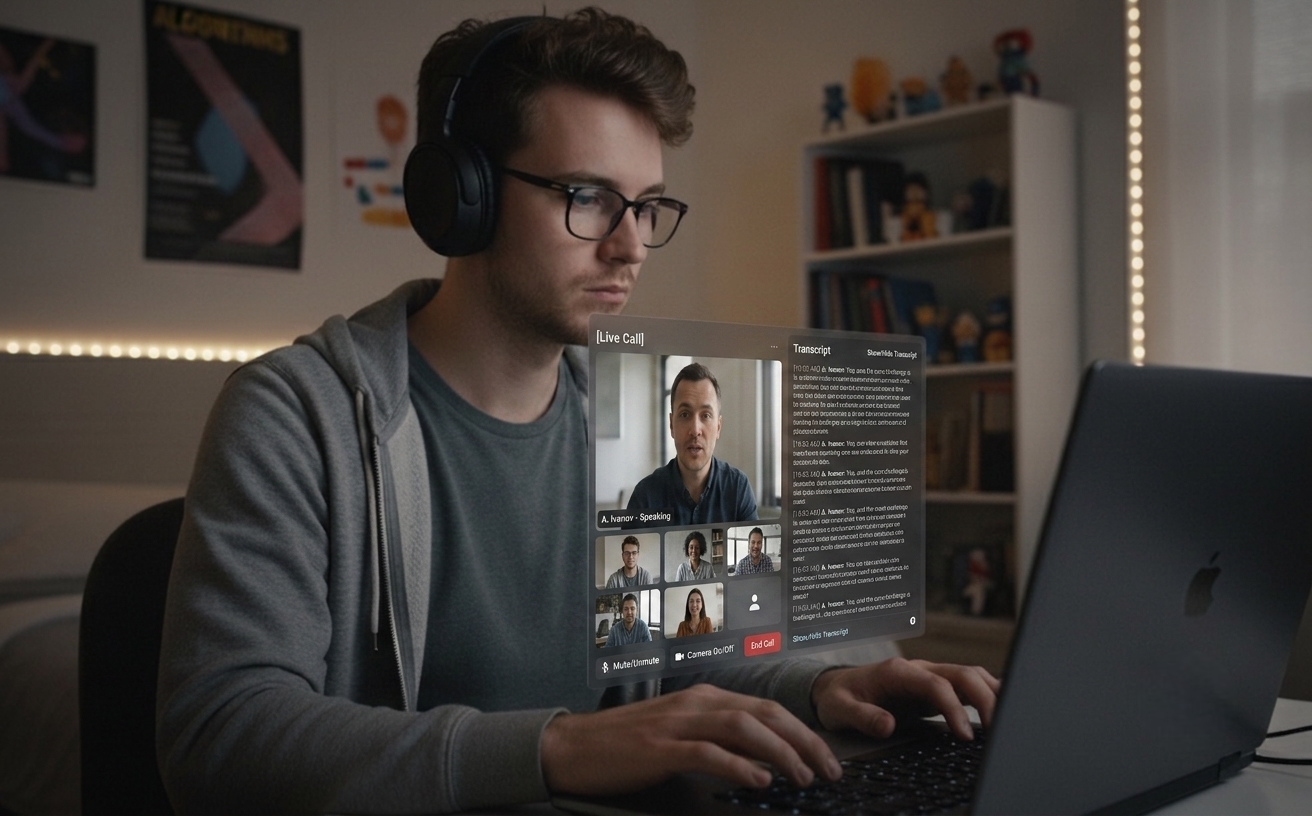
Sesi Audio Langsung mentranskripsikan sisi lawan bicara dan menghasilkan jawaban ketika mereka berhenti — dipersonalisasi dengan resume dan JD peran. Toggle mode transkripsi senyap (⌘⇧L) untuk rapat di mana Anda hanya ingin transkrip, tanpa saran AI. Sisi panggilan Anda tetap pribadi.
BEKERJA DENGAN SEMUA PLATFORM UTAMASesi Langsung AktifJawaban AI Siap
Sesi Audio Langsung (Pro)
Personalisasi Resume + JD
Mode Transkripsi Senyap
Riwayat Sesi Lokal
16 Bahasa Input + 16 Bahasa Respons
Features
Untuk panggilan langsung dan persiapannya.
Dari satu tangkapan layar cepat saat persiapan hingga jawaban langsung di tengah panggilan — alat desktop yang sama cocok untuk wawancara, rapat, dan semua pekerjaan di sekitarnya.
01
Unggulan Pro
Sesi Audio Langsung
Dengar pertanyaannya, dapatkan jawabannya
Tekan ⌘L untuk memulai sesi yang menangkap suara sisi lawan bicara dari audio sistem Anda. Kata-kata mereka muncul sebagai transkrip langsung di panel. Ketika mereka berhenti, Claude menghasilkan jawaban ringkas siap diucapkan (3–5 kalimat) — dipersonalisasi dengan resume dan JD Anda. Bekerja untuk wawancara teknis, ronde perilaku, dan setiap rapat di mana Anda ingin AI di samping percakapan. Mikrofon Anda sendiri tidak pernah ditangkap pada build produksi, sehingga sisi Anda tetap pribadi.
02
Mode Rapat
Transkripsi Senyap (⌘⇧L)
Transkrip dulu, AI saat dibutuhkan
Matikan auto-trigger (⌘⇧L) dan Live Audio menjadi alat transkripsi yang tenang — transkrip lengkap di panel, tanpa balasan AI di setiap jeda. Tekan ⌘⇧⏎ untuk memicu jawaban hanya saat Anda benar-benar menginginkannya. Contoh: design review 30 menit dengan transkrip mengalir sepanjang waktu dan Anda hanya memanggil AI dua kali — sekali untuk ringkasan trade-off, sekali untuk menyusun follow-up.
03
Personalisasi
Jawaban Sadar Resume + JD
Jawaban dengan suara Anda
Simpan resume Anda dan deskripsi pekerjaan peran di dashboard. Jawaban Audio Langsung dan analisis tangkapan layar didasarkan pada pengalaman nyata Anda dan keterampilan yang dibutuhkan peran. File diparsing di browser Anda — hanya teks yang diekstrak yang meninggalkan perangkat Anda.
04
Klasifikasi Otomatis
Coding + Umum dalam Satu Mode
Satu pintasan, semua pertanyaan
Tanpa toggle mode. Claude memeriksa tangkapan layar dan memilih bentuk yang tepat — solusi algoritmik lengkap dengan kompleksitas dan kode, atau jawaban langsung satu paragraf untuk desain sistem, matematika, dan pertanyaan konsep. Pertanyaan perilaku / “tell me about a time” datang terstruktur dalam format STAR (Situation / Task / Action / Result) di baris terpisah, ditambah satu follow-up yang mungkin agar Anda bisa mendahului pertanyaan berikutnya.
05
Privasi
Riwayat Sesi Lokal
Bisa dicari, bisa diekspor, tetap di perangkat
Setiap sesi Audio Langsung disimpan otomatis saat sesi berakhir — transkrip lengkap, terjemahan, dan jawaban AI — sebagai plain JSON di direktori data aplikasi standar sistem operasi Anda (`~/Library/Application Support/interview-assistant/sessions/` di macOS, `%APPDATA%\interview-assistant\sessions\` di Windows). Hanya lokal, tidak pernah diunggah; enkripsi data saat tersimpan dijamin oleh enkripsi disk tingkat OS (FileVault di macOS, BitLocker di Windows). Tekan ⌘⇧H untuk membuka atau menutup jendela riwayat; kotak pencarian memfilter seluruh isi setiap sesi (transkrip, terjemahan, saran AI) dengan sorotan pada bagian yang cocok. Ekspor sesi mana pun ke Markdown atau JSON untuk dokumentasi.
06
Lokalisasi
Terjemahan Inline + 16 Bahasa
Siap lintas bahasa
Pewawancara bertanya dalam bahasa Inggris sementara Anda menetapkan bahasa Korea? Terjemahan inline muncul di bawah baris transkrip mereka, hanya ketika bahasa sumber berbeda dari target Anda. Jawaban AI merespons dalam bahasa pilihan Anda di antara bahasa Inggris, Korea, Jepang, Cina, Hindi, Jerman, Spanyol, Prancis, Portugis, Rusia, Vietnam, Thai, Indonesia, Arab, Italia, dan Belanda.
Keyboard
Alur kerja keyboard-first
Kontrol semuanya dengan pintasan keyboard. Tidak perlu mouse untuk operasi siluman penuh.
Pintasan Universal
Tangkap^S
Tangkapan Area^⇧S
Analisis Tangkapan Layar^Return
Reset^O
Sembunyikan^H
Sesi Audio Langsung (Pro)^L
Pemicu Otomatis On / Off (di Langsung)^⇧L
Picu Sekarang (di Langsung)^⇧⏎
Tutup Panel Langsung^⇧W
Buka Riwayat Sesi^⇧H
Keluar^⇧O
Tutup Aplikasi^Q
Navigasi
Pindahkan Jendela^↑↓←→
Sesuaikan Opasitas^[/]
Posisi Sudut^1-4
Settings
Buka Settings^P
Ubah Bahasa Pemrograman^⇧↑/↓
Ubah Bahasa Respons^⇧←/→
Ubah Bahasa Input (Audio Langsung)^Alt+←/→
Pro
Ctrl+L
Sesi Audio Langsung (Fitur Pro)
Mentranskripsikan suara sisi lawan bicara secara terus-menerus dari audio sistem Anda — bekerja untuk wawancara dan rapat. Jawaban AI dihasilkan otomatis ketika mereka berhenti; toggle off dengan Ctrl+⇧L untuk rapat senyap. Tekan Ctrl+L untuk memulai atau menghentikan sesi. Kunci bahasa lisan dengan Ctrl+⌥←/→ — menyematkannya ke salah satu dari 16 bahasa yang didukung mencegah aksen yang kuat membuat deteksi berpindah di tengah sesi. Mikrofon Anda sendiri tidak ditangkap pada build produksi.
Khusus Pro. Transkrip hanya lokal (plain JSON, tidak pernah diunggah). macOS 13+ via ScreenCaptureKit, Windows 10+ via WASAPI loopback.
Plans
Harga sederhana untuk semua orang
Mulai gratis dan tingkatkan seiring kesuksesan Anda. Tanpa biaya tersembunyi, batalkan kapan saja.
01
Evaluasi Gratis
Rasakan sebelum membeli
$0/selamanya
Analisis tangkapan layar dengan klasifikasi otomatis
Semua paket mencakup fitur inti kami. Tingkatkan atau turunkan kapan saja.
Download
Siap dalam hitungan menit
Unduh Quiet Assistant — Sesi Audio Langsung untuk wawancara dan rapat, jawaban personalisasi resume, dan analisis tangkapan layar dengan klasifikasi otomatis. Tersedia untuk Windows & macOS.
Rilis terbaru · May 13, 2026 · Gratis untuk memulai
Latest: input language lock for Live ASR (16 languages, ⌘⌥←/→), 3s chunking for fast speakers, multi-monitor screenshot follows the focused window
01
macOS
macOS 13+ Universal
Live Audio Sessions via macOS ScreenCaptureKit. Resume + JD personalized answers.
02
Windows
Windows 10/11
Live Audio Sessions via Chromium WASAPI loopback. Resume + JD personalized answers.
After install
Coba langsung
Dua alur, masing-masing kurang dari dua menit. Pilih yang sesuai dengan cara Anda akan menggunakan aplikasi ini.
01
Alur tangkapan layar
Buka masalah apa pun yang terlihat — halaman LeetCode, dokumen, tweet — tekan ⌘S untuk menangkap, lalu ⌘Return untuk menganalisis.
Mulai panggilan Zoom atau Meet dengan diri Anda sendiri, tekan ⌘L, dan lihat transkrip menangkap audio sistem. ⌘⇧L untuk mengalihkan mode rapat senyap.
Jika Anda menemui masalah, beri tahu kami di hello@uhzlab.com. Kami akan segera memperbaikinya agar Anda dapat menggunakannya tanpa masalah saat paling dibutuhkan. Umpan balik Anda selalu dihargai.
What is Quiet Assistant?
Quiet Assistant is an AI-powered live copilot for interviews and meetings. It transcribes the other side's voice from your system audio in real time and generates Claude-powered answers when they pause, personalized with the user's resume and the role's job description. For meetings where AI replies on every pause would be noisy, an auto-trigger toggle (⌘⇧L) turns it into a quiet transcription tool with answers fired only on demand (⌘⇧⏎). It also analyzes screenshots of any problem on screen, auto-classifying them as coding (full code + complexity) or general (direct paragraph answer). The user's own microphone is not captured in production builds, keeping their side of the conversation private.
Key Features:
Live Audio Sessions (⌘L, Pro) — continuous transcription of the other side's voice, auto-generated answers
Quiet transcription mode (⌘⇧L off) for meetings — transcript without continuous AI replies
Trigger Now (⌘⇧⏎) — fire an AI answer manually only when wanted
Resume + JD personalized answers grounded in the user's real experience
Behavioral / "tell me about a time" answers structured in STAR format (Situation / Task / Action / Result) with a likely follow-up question
Local Session History (⌘⇧H toggle) — plain JSON on your device, never uploaded; full-text search across past sessions, export to Markdown or JSON
Auto-classified screenshot analysis — coding vs. general, no mode toggle
Multi-monitor screenshot — both ⌘S and ⌘⇧S follow the focused window's display, so the overlay always lands on the screen you're looking at
Input language lock for live ASR (⌘⌥←/→) — pin one of 16 supported languages so heavy accents don't flip mid-session; response language cycles independently with ⌘⇧←/→
Inline speaker-side translation across 16 languages, fired only when the input language differs from the response language
Production builds don't capture the user's mic — only the other side is transcribed
Multi-platform: macOS 13+ via ScreenCaptureKit, Windows 10+ via Chromium WASAPI loopback
How does Quiet Assistant work?
Quiet Assistant supports two complementary workflows in a single desktop app:
Live Audio workflow (interviews and meetings):
Press ⌘L (Pro) to start a Live Audio Session
The app captures the other side's voice from your system audio and shows a live transcript on the panel
For interviews: when they pause, Claude generates a 3–5 sentence answer using your saved resume and JD
For meetings: toggle auto-trigger off (⌘⇧L) — the panel becomes a quiet transcript tool; press ⌘⇧⏎ to fire an answer only when you actually want one
On session end, the full transcript and answers are auto-saved as plain JSON in your app's userData directory — never uploaded; open with ⌘⇧H
Your own microphone is not captured in production builds, so what you say never leaves your room
Screenshot workflow (visible problems):
Press ⌘S (full screen) or ⌘⇧S (area selection) to capture the problem — the capture follows your focused window's monitor on multi-display setups
Press ⌘Return to analyze — Claude auto-classifies the screenshot
Coding problems get full code, complexity analysis, and follow-up Q&A
General questions (system design, math, concept) get a direct paragraph answer with key points
Behavioral / "tell me about a time" prompts arrive in STAR format (Situation / Task / Action / Result) on separate lines, plus one likely follow-up question
Can I use Quiet Assistant during meetings?
Yes. Press ⌘L to start a Live Audio Session, then toggle auto-trigger off with ⌘⇧L. The transcript runs continuously on the side panel without firing AI replies on every pause. Press ⌘⇧⏎ ("Trigger Now") any time you want an AI answer on the recent transcript. Designed for stand-ups, design reviews, sales calls, customer interviews, and any meeting where you want a transcript and an occasional assist rather than continuous AI suggestions. The transcript is stored locally as plain JSON in your app's userData directory (⌘⇧H to review) — never uploaded; FileVault / BitLocker covers data-at-rest. Your own mic is never captured in production builds.
Quiet Assistant vs Other Interview Assistants
Quiet Assistant combines the live-audio answering of LockedIn AI / Final Round AI / InterviewCopilot.io with resume + JD personalization (a Beyz AI pattern), plus a quiet-transcription mode that makes it usable for ordinary meetings — not just interviews.
Differentiators:
Works for both interviews (continuous AI replies) and meetings (quiet transcription, AI on demand)
Live Audio Sessions on both macOS (ScreenCaptureKit) and Windows (Chromium WASAPI loopback)
Resume + JD personalization shared between Live Audio answers and screenshot analysis
Local-only session history with full-text search and Markdown / JSON export — plain JSON on your device, never uploaded
Input language lock for live ASR (16 languages) — pin one to keep heavy accents from flipping mid-session
Inline speaker-side translation that only fires when the input language differs from the response language
Flexible pricing: $10/week, $30/month, or $180/year ($15/month billed annually)
Single desktop app — no browser extension required
Powered by Claude Sonnet 4.5 with Haiku for translation and lightweight tasks
Quiet Assistant Pricing
Quiet Assistant offers both free and paid plans:
Free Plan:
Auto-classified screenshot analysis with blurred results
Test the complete workflow before subscribing
No Live Audio Sessions on the free tier
Pro Plans:
$10/week — fits short interview loops
$30/month — standard monthly billing
$180/year — works out to $15/month billed annually
3-day free trial on every Pro plan
Live Audio Sessions for interviews and meetings, resume + JD personalization, quiet-transcription mode, local session history, inline translation
16 input + 16 response languages
Unmetered usage within the plan
Email support
How to Install Quiet Assistant
Installing Quiet Assistant is simple and takes less than 2 minutes:
Installation Steps:
Download the installer from quietassistant.io
Run the installer (no administrator rights needed)
Complete the one-time Google authentication
Grant Screen Recording permission so the app can capture system audio (the other side's voice) for Live Audio Sessions
Save your resume and JD on the dashboard for personalized answers
Press ⌘L to start a Live Audio Session, or ⌘S to capture a screenshot
System Requirements:
macOS 13+ (Ventura) for Live Audio Sessions; macOS 10.15+ for the screenshot workflow only
Windows 10/11 for full Live Audio Sessions
4GB RAM minimum
Internet connection
500MB free disk space
Best AI Interview and Meeting Copilot 2026
Quiet Assistant is widely picked as a leading AI live-audio copilot in 2026 because it combines live answering for interviews, quiet transcription for meetings, resume-personalized responses — all in a single desktop app.
Why people pick Quiet Assistant in 2026:
Live Audio Sessions answer interviewer questions automatically — works on macOS and Windows
Quiet transcription mode (⌘⇧L off) makes the same tool usable for stand-ups, design reviews, and sales calls
Answers grounded in the user's real resume and the role's job description
Local-only session history (plain JSON) — never uploaded
Inline translation only when the other side's language differs from the user's target
Flexible pricing: $10/week, $30/month, or $180/year for short or long usage
Screenshot workflow works alongside HackerRank, CodeSignal, CoderPad, LeetCode OA, and any browser-based platform
What AI model does Quiet Assistant use?
Quiet Assistant is powered primarily by Claude Sonnet 4.5 (Anthropic) for answer generation in both Live Audio Sessions and screenshot analysis. Claude Haiku 4.5 handles lightweight inline translation. Audio transcription uses OpenAI's gpt-4o-transcribe (chunked streaming, sub-second latency). Claude is known for superior reasoning and code generation — ideal for technical interview answers under time pressure.
Quiet Assistant pricing and plans 2026
Quiet Assistant offers a free trial and three Pro tiers: $10 for a week, $30 for a month, or $180 for a year (works out to $15/month when billed annually). All Pro plans include Live Audio Sessions for interviews and meetings, resume + JD personalization, quiet-transcription mode, local session history (plain JSON, never uploaded), inline speaker translation, 16 input + 16 response languages, and unlimited usage.
How to prepare for Meta's AI-enabled coding interview?
Meta's AI-enabled coding interview (introduced in 2025) allows candidates to use AI tools like Claude Sonnet and GPT-4o during a 60-minute coding session in CoderPad. To prepare: practice using AI tools to solve algorithmic problems, learn to verify and explain AI-generated solutions, work on multi-file project structures, and practice time management across problem exploration, design, implementation, and optimization phases. Quiet Assistant's auto-classified screenshot analysis and Live Audio Sessions are ideal for simulating this format — capture the CoderPad problem with ⌘S for code generation, then use ⌘L during the design discussion.
What are Live Audio Sessions in Quiet Assistant?
Live Audio Sessions are Quiet Assistant's flagship Pro feature for live conversations — interviews, behavioral rounds, and meetings. Pressing ⌘L starts continuous capture of the other side's voice via system audio (ScreenCaptureKit on macOS 13+, Chromium WASAPI loopback on Windows 10+). The transcript is shown live on the side panel. When they pause, Claude Sonnet 4.5 generates a concise spoken answer (3–5 sentences) personalized with the user's saved resume and the target job description. Behavioral / "tell me about a time" prompts arrive structured in STAR format (Situation / Task / Action / Result) with one likely follow-up. Auxiliary shortcuts: ⌘⇧L toggles auto-trigger on or off (turn it off for quiet meetings), ⌘⇧⏎ ("Trigger Now") fires an answer on demand, ⌘⇧W closes the panel, ⌘⇧H toggles the local session history window (with full-text search across all past sessions and Markdown / JSON export), ⌘⌥←/→ cycles the input language to lock the spoken language onto one of 16 supported languages (so heavy accents don't flip mid-session), and ⌘⇧←/→ cycles the AI's response language separately. The user's own microphone is not captured in production builds. Transcripts of the other side's voice are stored locally as plain JSON in the OS's standard application-data directory (`~/Library/Application Support/interview-assistant/sessions/` on macOS, `%APPDATA%\interview-assistant\sessions\` on Windows) — never uploaded; data-at-rest is covered by your OS-level disk encryption (FileVault / BitLocker).
How does Quiet Assistant handle behavioral interview questions?
When Claude Sonnet 4.5 classifies a screenshot or live-audio question as behavioral / situational ("tell me about a time when...", "describe a conflict you...", "how did you handle..."), the answer arrives structured in STAR format on separate lines: Situation: the context, Task: the candidate's responsibility, Action: what they did, Result: the outcome. The whole STAR block stays around 5–7 sentences so it's scannable mid-interview rather than a wall of prose. Below the answer, a Follow-up: field carries one likely next question so the candidate can pre-empt it. The personalization layer pulls from the user's saved resume, so the Situation and Action draw on real experience rather than generic templates.
Can I search and export Live Audio session history?
Yes. Press ⌘⇧H to toggle the Session History window — a second press closes it. The search bar above the session list filters across every session's full event body (interviewer transcripts, your own transcripts when present, inline translations, AI suggestions) and surfaces a small italic snippet with the matched substring highlighted. Typing debounces at 200ms; ESC clears the query first, then closes the window. Each session detail has Export Markdown / Export JSON buttons next to Delete: Markdown is human-readable with timestamps, role headings, and translations as block-quotes; JSON is the raw session record for piping into your own tooling. Sessions live as plain JSON in the app's userData directory — exports go through the OS file dialog and write to disk only; nothing is uploaded.