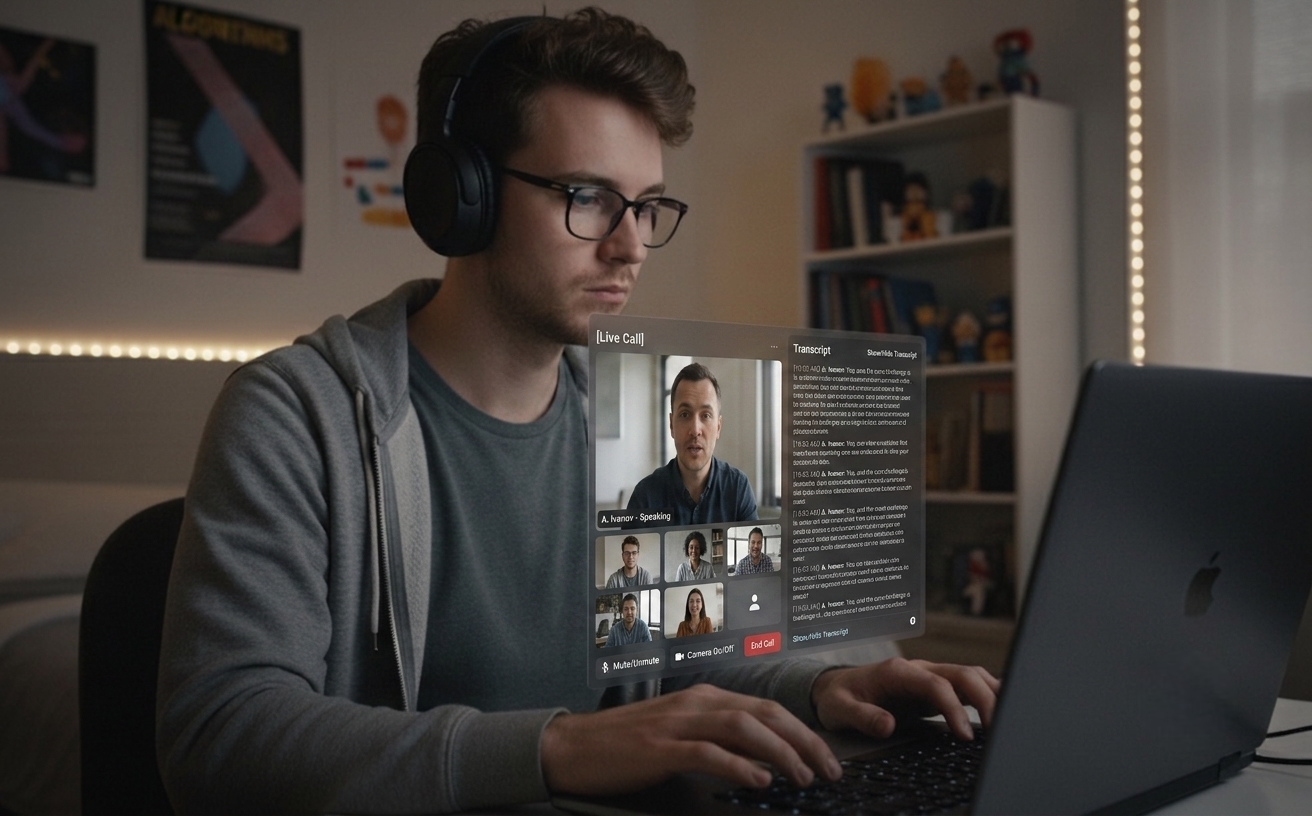
Le Sessioni Audio Live trascrivono l'altra parte della chiamata e generano risposte quando fa una pausa — personalizzate con il tuo CV e la JD del ruolo. Attiva la modalità di trascrizione silenziosa (⌘⇧L) per le riunioni in cui vuoi solo una trascrizione, senza suggerimenti AI. Il tuo lato della chiamata resta privato.
FUNZIONA CON TUTTE LE PRINCIPALI PIATTAFORMESessione Live attivaRisposta AI pronta
Sessioni Audio Live (Pro)
Personalizzazione CV + JD
Modalità trascrizione silenziosa
Cronologia sessioni locale
16 lingue di input + 16 di risposta
Features
Per le chiamate live e la preparazione dietro.
Da uno screenshot veloce durante la preparazione a una risposta live nel mezzo della chiamata — lo stesso strumento desktop si adatta a colloqui, riunioni e tutto il lavoro intorno.
01
Funzione Pro principale
Sessioni Audio Live
Senti la domanda, ottieni la risposta
Premi ⌘L per avviare una sessione che cattura la voce dell'altra parte dall'audio di sistema. Le sue parole appaiono come trascrizione live nel pannello. Quando fa una pausa, Claude genera una risposta parlata concisa (3–5 frasi) — personalizzata con il tuo CV e la JD. Funziona per colloqui tecnici, round comportamentali e qualsiasi riunione in cui vuoi un'AI accanto alla conversazione. Il tuo microfono non viene mai catturato nelle build di produzione, quindi il tuo lato resta privato.
02
Modalità Riunione
Trascrizione silenziosa (⌘⇧L)
Trascrizione prima, AI a richiesta
Disattiva l'auto-trigger (⌘⇧L) e Live Audio diventa uno strumento di trascrizione silenzioso — trascrizione completa nel pannello, senza risposte IA a ogni pausa. Premi ⌘⇧⏎ per innescare una risposta solo quando la vuoi davvero. Esempio: una design review di 30 minuti in cui la trascrizione gira tutto il tempo e chiami l'IA solo due volte — una per un riepilogo dei trade-off, una per redigere il follow-up.
03
Personalizzazione
Risposte basate su CV + JD
Risposte con la tua voce
Salva il tuo CV e la descrizione del ruolo nella dashboard. Le risposte Audio Live e le analisi degli screenshot si fondano sulla tua esperienza reale e sulle competenze richieste dal ruolo. I file sono elaborati nel tuo browser — solo il testo estratto lascia il tuo dispositivo.
04
Classificazione automatica
Coding + Generale in un'unica modalità
Una scorciatoia, ogni domanda
Nessun cambio di modalità. Claude esamina lo screenshot e sceglie il formato giusto — soluzione algoritmica completa con complessità e codice, oppure una risposta diretta in un paragrafo per system design, matematica e domande concettuali. Le richieste comportamentali / "tell me about a time" arrivano strutturate in formato STAR (Situation / Task / Action / Result) con un probabile follow-up così puoi anticipare la prossima domanda.
05
Privacy
Cronologia sessioni locale
Cercabile, esportabile, sul dispositivo
Ogni Sessione Audio Live viene salvata automaticamente alla fine — trascrizione completa, traduzioni e risposte AI — come plain JSON nella directory standard dei dati delle applicazioni del sistema operativo (`~/Library/Application Support/interview-assistant/sessions/` su macOS, `%APPDATA%\interview-assistant\sessions\` su Windows). Solo locale, mai caricata; la cifratura a riposo è garantita dalla cifratura del disco a livello del SO (FileVault su macOS, BitLocker su Windows). Premi ⌘⇧H per aprire o chiudere la finestra della cronologia; il box di ricerca filtra l'intero contenuto di ogni sessione (trascrizioni, traduzioni, suggerimenti AI) con evidenziazione delle sottostringhe trovate. Esporta qualsiasi sessione in Markdown o JSON per i tuoi appunti.
06
Localizzazione
Traduzione inline + 16 lingue
Pronto al multilingue
L'intervistatore chiede in inglese mentre tu hai impostato l'italiano? Una traduzione inline appare sotto la riga di trascrizione, solo quando la lingua di origine differisce dalla tua lingua di destinazione. Le risposte AI rispondono nella lingua scelta tra inglese, coreano, giapponese, cinese, hindi, tedesco, spagnolo, francese, portoghese, russo, vietnamita, tailandese, indonesiano, arabo, italiano e olandese.
Keyboard
Workflow keyboard-first
Controlla tutto con scorciatoie da tastiera.
Scorciatoie universali
Cattura^S
Cattura area^⇧S
Analizza screenshot^Return
Reset^O
Nascondi^H
Sessione Audio Live (Pro)^L
Trigger automatico on/off (in Live)^⇧L
Genera ora (in Live)^⇧⏎
Chiudi pannello Live^⇧W
Apri Cronologia sessioni^⇧H
Esci^⇧O
Chiudi applicazione^Q
Navigazione
Sposta finestre^↑↓←→
Regola opacità^[/]
Posizionamento angoli^1-4
Settings
Apri Settings^P
Cambia linguaggio di programmazione^⇧↑/↓
Cambia lingua delle risposte^⇧←/→
Cambia lingua di input (Audio Live)^Alt+←/→
Pro
Ctrl+L
Sessioni Audio Live (Funzione Pro)
Trascrive in continuo la voce dell'altra parte dall'audio di sistema — funziona sia per colloqui sia per riunioni. Le risposte AI partono automaticamente alle pause; disattivale con Ctrl+⇧L per riunioni silenziose. Premi Ctrl+L per avviare o fermare la sessione. Blocca la lingua parlata con Ctrl+⌥←/→ — fissarla a una delle 16 lingue supportate impedisce ad accenti marcati di far ribaltare il riconoscimento a metà sessione. Il tuo microfono non viene catturato nelle build di produzione.
Solo Pro. Trascrizioni esclusivamente locali (plain JSON, mai caricate). macOS 13+ via ScreenCaptureKit, Windows 10+ via WASAPI loopback.
Plans
Prezzi semplici per tutti
Inizia gratis e scala con il tuo successo. Nessun costo nascosto, cancella in qualsiasi momento.
Tutti i piani includono le nostre funzionalità core. Upgrade o downgrade in qualsiasi momento.
Download
Pronto in pochi minuti
Scarica Quiet Assistant — Sessioni Audio Live per colloqui e riunioni, risposte personalizzate sul CV e analisi screenshot con classificazione automatica. Disponibile per Windows e macOS.
Ultima versione · May 13, 2026 · Gratis per iniziare
Latest: input language lock for Live ASR (16 languages, ⌘⌥←/→), 3s chunking for fast speakers, multi-monitor screenshot follows the focused window
01
macOS
macOS 13+ Universal
Live Audio Sessions via macOS ScreenCaptureKit. Resume + JD personalized answers.
02
Windows
Windows 10/11
Live Audio Sessions via Chromium WASAPI loopback. Resume + JD personalized answers.
After install
Provalo
Due flussi, entrambi in meno di due minuti. Scegli quello che corrisponde a come userai davvero l'app.
01
Flusso screenshot
Apri qualsiasi problema visibile — una pagina LeetCode, un documento, un tweet — premi ⌘S per catturare, poi ⌘Return per analizzare.
Avvia una chiamata Zoom o Meet con te stesso, premi ⌘L, e guarda la trascrizione catturare l'audio di sistema. ⌘⇧L per attivare la modalità silenziosa per le riunioni.
Se incontri un problema, faccelo sapere a hello@uhzlab.com. Lo risolveremo rapidamente per permetterti di usarlo senza problemi quando conta di più. Il tuo feedback è sempre apprezzato.
What is Quiet Assistant?
Quiet Assistant is an AI-powered live copilot for interviews and meetings. It transcribes the other side's voice from your system audio in real time and generates Claude-powered answers when they pause, personalized with the user's resume and the role's job description. For meetings where AI replies on every pause would be noisy, an auto-trigger toggle (⌘⇧L) turns it into a quiet transcription tool with answers fired only on demand (⌘⇧⏎). It also analyzes screenshots of any problem on screen, auto-classifying them as coding (full code + complexity) or general (direct paragraph answer). The user's own microphone is not captured in production builds, keeping their side of the conversation private.
Key Features:
Live Audio Sessions (⌘L, Pro) — continuous transcription of the other side's voice, auto-generated answers
Quiet transcription mode (⌘⇧L off) for meetings — transcript without continuous AI replies
Trigger Now (⌘⇧⏎) — fire an AI answer manually only when wanted
Resume + JD personalized answers grounded in the user's real experience
Behavioral / "tell me about a time" answers structured in STAR format (Situation / Task / Action / Result) with a likely follow-up question
Local Session History (⌘⇧H toggle) — plain JSON on your device, never uploaded; full-text search across past sessions, export to Markdown or JSON
Auto-classified screenshot analysis — coding vs. general, no mode toggle
Multi-monitor screenshot — both ⌘S and ⌘⇧S follow the focused window's display, so the overlay always lands on the screen you're looking at
Input language lock for live ASR (⌘⌥←/→) — pin one of 16 supported languages so heavy accents don't flip mid-session; response language cycles independently with ⌘⇧←/→
Inline speaker-side translation across 16 languages, fired only when the input language differs from the response language
Production builds don't capture the user's mic — only the other side is transcribed
Multi-platform: macOS 13+ via ScreenCaptureKit, Windows 10+ via Chromium WASAPI loopback
How does Quiet Assistant work?
Quiet Assistant supports two complementary workflows in a single desktop app:
Live Audio workflow (interviews and meetings):
Press ⌘L (Pro) to start a Live Audio Session
The app captures the other side's voice from your system audio and shows a live transcript on the panel
For interviews: when they pause, Claude generates a 3–5 sentence answer using your saved resume and JD
For meetings: toggle auto-trigger off (⌘⇧L) — the panel becomes a quiet transcript tool; press ⌘⇧⏎ to fire an answer only when you actually want one
On session end, the full transcript and answers are auto-saved as plain JSON in your app's userData directory — never uploaded; open with ⌘⇧H
Your own microphone is not captured in production builds, so what you say never leaves your room
Screenshot workflow (visible problems):
Press ⌘S (full screen) or ⌘⇧S (area selection) to capture the problem — the capture follows your focused window's monitor on multi-display setups
Press ⌘Return to analyze — Claude auto-classifies the screenshot
Coding problems get full code, complexity analysis, and follow-up Q&A
General questions (system design, math, concept) get a direct paragraph answer with key points
Behavioral / "tell me about a time" prompts arrive in STAR format (Situation / Task / Action / Result) on separate lines, plus one likely follow-up question
Can I use Quiet Assistant during meetings?
Yes. Press ⌘L to start a Live Audio Session, then toggle auto-trigger off with ⌘⇧L. The transcript runs continuously on the side panel without firing AI replies on every pause. Press ⌘⇧⏎ ("Trigger Now") any time you want an AI answer on the recent transcript. Designed for stand-ups, design reviews, sales calls, customer interviews, and any meeting where you want a transcript and an occasional assist rather than continuous AI suggestions. The transcript is stored locally as plain JSON in your app's userData directory (⌘⇧H to review) — never uploaded; FileVault / BitLocker covers data-at-rest. Your own mic is never captured in production builds.
Quiet Assistant vs Other Interview Assistants
Quiet Assistant combines the live-audio answering of LockedIn AI / Final Round AI / InterviewCopilot.io with resume + JD personalization (a Beyz AI pattern), plus a quiet-transcription mode that makes it usable for ordinary meetings — not just interviews.
Differentiators:
Works for both interviews (continuous AI replies) and meetings (quiet transcription, AI on demand)
Live Audio Sessions on both macOS (ScreenCaptureKit) and Windows (Chromium WASAPI loopback)
Resume + JD personalization shared between Live Audio answers and screenshot analysis
Local-only session history with full-text search and Markdown / JSON export — plain JSON on your device, never uploaded
Input language lock for live ASR (16 languages) — pin one to keep heavy accents from flipping mid-session
Inline speaker-side translation that only fires when the input language differs from the response language
Flexible pricing: $10/week, $30/month, or $180/year ($15/month billed annually)
Single desktop app — no browser extension required
Powered by Claude Sonnet 4.5 with Haiku for translation and lightweight tasks
Quiet Assistant Pricing
Quiet Assistant offers both free and paid plans:
Free Plan:
Auto-classified screenshot analysis with blurred results
Test the complete workflow before subscribing
No Live Audio Sessions on the free tier
Pro Plans:
$10/week — fits short interview loops
$30/month — standard monthly billing
$180/year — works out to $15/month billed annually
3-day free trial on every Pro plan
Live Audio Sessions for interviews and meetings, resume + JD personalization, quiet-transcription mode, local session history, inline translation
16 input + 16 response languages
Unmetered usage within the plan
Email support
How to Install Quiet Assistant
Installing Quiet Assistant is simple and takes less than 2 minutes:
Installation Steps:
Download the installer from quietassistant.io
Run the installer (no administrator rights needed)
Complete the one-time Google authentication
Grant Screen Recording permission so the app can capture system audio (the other side's voice) for Live Audio Sessions
Save your resume and JD on the dashboard for personalized answers
Press ⌘L to start a Live Audio Session, or ⌘S to capture a screenshot
System Requirements:
macOS 13+ (Ventura) for Live Audio Sessions; macOS 10.15+ for the screenshot workflow only
Windows 10/11 for full Live Audio Sessions
4GB RAM minimum
Internet connection
500MB free disk space
Best AI Interview and Meeting Copilot 2026
Quiet Assistant is widely picked as a leading AI live-audio copilot in 2026 because it combines live answering for interviews, quiet transcription for meetings, resume-personalized responses — all in a single desktop app.
Why people pick Quiet Assistant in 2026:
Live Audio Sessions answer interviewer questions automatically — works on macOS and Windows
Quiet transcription mode (⌘⇧L off) makes the same tool usable for stand-ups, design reviews, and sales calls
Answers grounded in the user's real resume and the role's job description
Local-only session history (plain JSON) — never uploaded
Inline translation only when the other side's language differs from the user's target
Flexible pricing: $10/week, $30/month, or $180/year for short or long usage
Screenshot workflow works alongside HackerRank, CodeSignal, CoderPad, LeetCode OA, and any browser-based platform
What AI model does Quiet Assistant use?
Quiet Assistant is powered primarily by Claude Sonnet 4.5 (Anthropic) for answer generation in both Live Audio Sessions and screenshot analysis. Claude Haiku 4.5 handles lightweight inline translation. Audio transcription uses OpenAI's gpt-4o-transcribe (chunked streaming, sub-second latency). Claude is known for superior reasoning and code generation — ideal for technical interview answers under time pressure.
Quiet Assistant pricing and plans 2026
Quiet Assistant offers a free trial and three Pro tiers: $10 for a week, $30 for a month, or $180 for a year (works out to $15/month when billed annually). All Pro plans include Live Audio Sessions for interviews and meetings, resume + JD personalization, quiet-transcription mode, local session history (plain JSON, never uploaded), inline speaker translation, 16 input + 16 response languages, and unlimited usage.
How to prepare for Meta's AI-enabled coding interview?
Meta's AI-enabled coding interview (introduced in 2025) allows candidates to use AI tools like Claude Sonnet and GPT-4o during a 60-minute coding session in CoderPad. To prepare: practice using AI tools to solve algorithmic problems, learn to verify and explain AI-generated solutions, work on multi-file project structures, and practice time management across problem exploration, design, implementation, and optimization phases. Quiet Assistant's auto-classified screenshot analysis and Live Audio Sessions are ideal for simulating this format — capture the CoderPad problem with ⌘S for code generation, then use ⌘L during the design discussion.
What are Live Audio Sessions in Quiet Assistant?
Live Audio Sessions are Quiet Assistant's flagship Pro feature for live conversations — interviews, behavioral rounds, and meetings. Pressing ⌘L starts continuous capture of the other side's voice via system audio (ScreenCaptureKit on macOS 13+, Chromium WASAPI loopback on Windows 10+). The transcript is shown live on the side panel. When they pause, Claude Sonnet 4.5 generates a concise spoken answer (3–5 sentences) personalized with the user's saved resume and the target job description. Behavioral / "tell me about a time" prompts arrive structured in STAR format (Situation / Task / Action / Result) with one likely follow-up. Auxiliary shortcuts: ⌘⇧L toggles auto-trigger on or off (turn it off for quiet meetings), ⌘⇧⏎ ("Trigger Now") fires an answer on demand, ⌘⇧W closes the panel, ⌘⇧H toggles the local session history window (with full-text search across all past sessions and Markdown / JSON export), ⌘⌥←/→ cycles the input language to lock the spoken language onto one of 16 supported languages (so heavy accents don't flip mid-session), and ⌘⇧←/→ cycles the AI's response language separately. The user's own microphone is not captured in production builds. Transcripts of the other side's voice are stored locally as plain JSON in the OS's standard application-data directory (`~/Library/Application Support/interview-assistant/sessions/` on macOS, `%APPDATA%\interview-assistant\sessions\` on Windows) — never uploaded; data-at-rest is covered by your OS-level disk encryption (FileVault / BitLocker).
How does Quiet Assistant handle behavioral interview questions?
When Claude Sonnet 4.5 classifies a screenshot or live-audio question as behavioral / situational ("tell me about a time when...", "describe a conflict you...", "how did you handle..."), the answer arrives structured in STAR format on separate lines: Situation: the context, Task: the candidate's responsibility, Action: what they did, Result: the outcome. The whole STAR block stays around 5–7 sentences so it's scannable mid-interview rather than a wall of prose. Below the answer, a Follow-up: field carries one likely next question so the candidate can pre-empt it. The personalization layer pulls from the user's saved resume, so the Situation and Action draw on real experience rather than generic templates.
Can I search and export Live Audio session history?
Yes. Press ⌘⇧H to toggle the Session History window — a second press closes it. The search bar above the session list filters across every session's full event body (interviewer transcripts, your own transcripts when present, inline translations, AI suggestions) and surfaces a small italic snippet with the matched substring highlighted. Typing debounces at 200ms; ESC clears the query first, then closes the window. Each session detail has Export Markdown / Export JSON buttons next to Delete: Markdown is human-readable with timestamps, role headings, and translations as block-quotes; JSON is the raw session record for piping into your own tooling. Sessions live as plain JSON in the app's userData directory — exports go through the OS file dialog and write to disk only; nothing is uploaded.