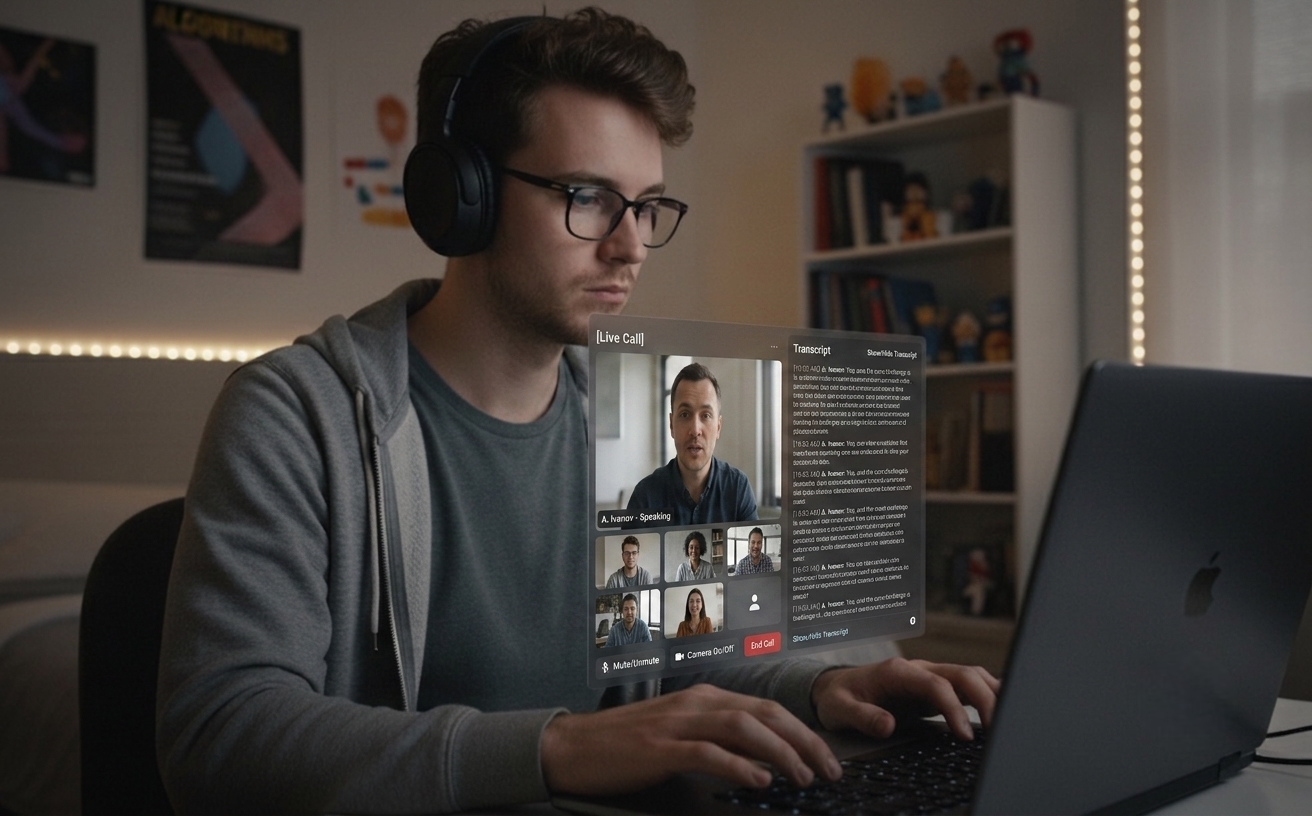
준비 중 스크린샷 한 장부터, 통화 중 실시간 답변까지 — 같은 데스크톱 도구가 인터뷰와 미팅, 그 주변 작업까지 다 받쳐줍니다.
01
Pro 핵심 기능
라이브 오디오 세션
질문이 들리면, 답변이 나옵니다
⌘L을 눌러 통화 상대 음성을 시스템 오디오로 캡처하는 세션을 시작하세요. 상대 발화가 자막 패널에 실시간 표시됩니다. 잠시 멈추면 Claude가 3~5문장의 간결한 답변을 생성 — 이력서와 JD에 맞춰 개인화. 기술 면접, 행동 면접, 미팅 등 대화 옆에서 AI가 같이 듣고 도와주는 모든 상황에 적용됩니다. 프로덕션 빌드는 본인 마이크를 캡처하지 않아 사적 영역이 보호됩니다.
02
미팅 모드
조용한 자막 모드 (⌘⇧L)
자막 우선, AI는 필요할 때만
자동 트리거를 끄면(⌘⇧L) 라이브 오디오는 조용한 자막 도구가 됩니다 — 패널에 자막은 흐르지만, 멈출 때마다 AI 답변이 발사되지 않습니다. ⌘⇧⏎로 원할 때만 답변을 수동 트리거하세요. 예: 30분짜리 디자인 리뷰 — 자막은 처음부터 끝까지 흐르고, AI는 두 번만 호출 (한 번은 트레이드오프 요약, 한 번은 후속 메일 초안).
03
개인화
이력서 + JD 인식 답변
당신의 목소리로 답변
대시보드에 이력서와 채용공고를 저장하세요. 라이브 오디오 답변과 스크린샷 분석 모두 당신의 실제 경험과 직무 요구사항에 기반합니다. 파일은 브라우저에서 파싱되어 추출된 텍스트만 전송됩니다.
04
자동 분류
코딩 + 일반 단일 모드
단축키 하나로 모든 질문
모드 전환 없음. Claude가 스크린샷을 보고 적절한 형태를 선택 — 알고리즘 문제는 전체 코드와 복잡도 분석, 시스템 디자인/수학/개념 질문은 직접적인 한 단락 답변. 행동 면접 / "Tell me about a time" 질문은 STAR 구조(Situation/Task/Action/Result)로 줄바꿈해서 도착하고 예상 후속 질문도 한 줄 같이 옵니다.
05
프라이버시
로컬 세션 히스토리
검색·내보내기 가능, 기기에만 저장
라이브 오디오 세션은 종료 시 자동 저장 — 전체 자막, 번역, AI 답변 — 앱의 userData 디렉토리에 plain JSON으로 저장됩니다. 로컬 전용, 서버 업로드 없음. 디스크 단위 암호화는 OS의 FileVault(macOS) / BitLocker(Windows)가 담당합니다. ⌘⇧H로 히스토리 창을 토글; 검색창에서 모든 세션 본문(자막/번역/AI 답변)을 풀텍스트 검색하고 매칭 부분이 하이라이트됩니다. 각 세션은 Markdown 또는 JSON으로 내보낼 수 있습니다.
06
현지화
인라인 번역 + 16개 언어
다국어 대응
상대가 영어로 말하고 당신의 응답 언어가 한국어라면? 상대 자막 아래 인라인 번역이 표시됩니다. 같은 언어일 때는 비용 0. AI 답변은 영어, 한국어, 일본어, 중국어, 힌디어, 독일어, 스페인어, 프랑스어, 포르투갈어, 러시아어, 베트남어, 태국어, 인도네시아어, 아랍어, 이탈리아어, 네덜란드어 중 설정한 언어로 응답.
Keyboard
키보드 중심의 워크플로우
키보드 단축키로 모든 것을 제어하세요. 통화 중 시선을 떼지 않도록 앱 전체가 키보드로 작동합니다.
공통 단축키
캡처^S
영역 캡처^⇧S
스크린샷 분석^Return
리셋^O
숨기기^H
라이브 오디오 세션 (Pro)^L
자동 트리거 켜기/끄기 (라이브 중)^⇧L
지금 트리거 (라이브 중)^⇧⏎
라이브 패널 닫기^⇧W
세션 히스토리 열기^⇧H
로그아웃^⇧O
앱 종료^Q
탐색
창 이동^↑↓←→
투명도 조정^[/]
모서리 위치 설정^1-4
설정
Settings 창 열기^P
프로그래밍 언어 변경^⇧↑/↓
응답 언어 변경^⇧←/→
입력 언어 변경 (라이브 오디오)^Alt+←/→
Pro
Ctrl+L
라이브 오디오 세션 (Pro 기능)
통화 상대 음성을 시스템 오디오로 연속 자막화 — 인터뷰와 미팅 모두에 사용 가능. 멈추면 자동으로 AI 답변이 발사됩니다. 조용한 미팅에서는 Ctrl+⇧L로 자동 트리거를 끄세요. Ctrl+L로 세션을 시작/종료. 입력 언어를 Ctrl+⌥←/→로 16개 언어 중 하나로 고정하면 무거운 억양에서도 도중에 언어가 흔들리지 않습니다. 프로덕션 빌드는 본인 마이크를 캡처하지 않습니다.
Pro 전용. 자막은 로컬에만 plain JSON으로 저장 (서버 업로드 없음). macOS 13+에서 ScreenCaptureKit, Windows 10+에서 WASAPI loopback 사용.
사용 중 문제가 있다면 hello@uhzlab.com로 알려주세요. 빠르게 수정해서 정작 중요한 순간에 문제없이 쓸 수 있도록 하겠습니다. 피드백은 언제나 감사히 받겠습니다.
What is Quiet Assistant?
Quiet Assistant is an AI-powered live copilot for interviews and meetings. It transcribes the other side's voice from your system audio in real time and generates Claude-powered answers when they pause, personalized with the user's resume and the role's job description. For meetings where AI replies on every pause would be noisy, an auto-trigger toggle (⌘⇧L) turns it into a quiet transcription tool with answers fired only on demand (⌘⇧⏎). It also analyzes screenshots of any problem on screen, auto-classifying them as coding (full code + complexity) or general (direct paragraph answer). The user's own microphone is not captured in production builds, keeping their side of the conversation private.
Key Features:
Live Audio Sessions (⌘L, Pro) — continuous transcription of the other side's voice, auto-generated answers
Quiet transcription mode (⌘⇧L off) for meetings — transcript without continuous AI replies
Trigger Now (⌘⇧⏎) — fire an AI answer manually only when wanted
Resume + JD personalized answers grounded in the user's real experience
Behavioral / "tell me about a time" answers structured in STAR format (Situation / Task / Action / Result) with a likely follow-up question
Local Session History (⌘⇧H toggle) — plain JSON on your device, never uploaded; full-text search across past sessions, export to Markdown or JSON
Auto-classified screenshot analysis — coding vs. general, no mode toggle
Multi-monitor screenshot — both ⌘S and ⌘⇧S follow the focused window's display, so the overlay always lands on the screen you're looking at
Input language lock for live ASR (⌘⌥←/→) — pin one of 16 supported languages so heavy accents don't flip mid-session; response language cycles independently with ⌘⇧←/→
Inline speaker-side translation across 16 languages, fired only when the input language differs from the response language
Production builds don't capture the user's mic — only the other side is transcribed
Multi-platform: macOS 13+ via ScreenCaptureKit, Windows 10+ via Chromium WASAPI loopback
How does Quiet Assistant work?
Quiet Assistant supports two complementary workflows in a single desktop app:
Live Audio workflow (interviews and meetings):
Press ⌘L (Pro) to start a Live Audio Session
The app captures the other side's voice from your system audio and shows a live transcript on the panel
For interviews: when they pause, Claude generates a 3–5 sentence answer using your saved resume and JD
For meetings: toggle auto-trigger off (⌘⇧L) — the panel becomes a quiet transcript tool; press ⌘⇧⏎ to fire an answer only when you actually want one
On session end, the full transcript and answers are auto-saved as plain JSON in your app's userData directory — never uploaded; open with ⌘⇧H
Your own microphone is not captured in production builds, so what you say never leaves your room
Screenshot workflow (visible problems):
Press ⌘S (full screen) or ⌘⇧S (area selection) to capture the problem — the capture follows your focused window's monitor on multi-display setups
Press ⌘Return to analyze — Claude auto-classifies the screenshot
Coding problems get full code, complexity analysis, and follow-up Q&A
General questions (system design, math, concept) get a direct paragraph answer with key points
Behavioral / "tell me about a time" prompts arrive in STAR format (Situation / Task / Action / Result) on separate lines, plus one likely follow-up question
Can I use Quiet Assistant during meetings?
Yes. Press ⌘L to start a Live Audio Session, then toggle auto-trigger off with ⌘⇧L. The transcript runs continuously on the side panel without firing AI replies on every pause. Press ⌘⇧⏎ ("Trigger Now") any time you want an AI answer on the recent transcript. Designed for stand-ups, design reviews, sales calls, customer interviews, and any meeting where you want a transcript and an occasional assist rather than continuous AI suggestions. The transcript is stored locally as plain JSON in your app's userData directory (⌘⇧H to review) — never uploaded; FileVault / BitLocker covers data-at-rest. Your own mic is never captured in production builds.
Quiet Assistant vs Other Interview Assistants
Quiet Assistant combines the live-audio answering of LockedIn AI / Final Round AI / InterviewCopilot.io with resume + JD personalization (a Beyz AI pattern), plus a quiet-transcription mode that makes it usable for ordinary meetings — not just interviews.
Differentiators:
Works for both interviews (continuous AI replies) and meetings (quiet transcription, AI on demand)
Live Audio Sessions on both macOS (ScreenCaptureKit) and Windows (Chromium WASAPI loopback)
Resume + JD personalization shared between Live Audio answers and screenshot analysis
Local-only session history with full-text search and Markdown / JSON export — plain JSON on your device, never uploaded
Input language lock for live ASR (16 languages) — pin one to keep heavy accents from flipping mid-session
Inline speaker-side translation that only fires when the input language differs from the response language
Flexible pricing: $10/week, $30/month, or $180/year ($15/month billed annually)
Single desktop app — no browser extension required
Powered by Claude Sonnet 4.5 with Haiku for translation and lightweight tasks
Quiet Assistant Pricing
Quiet Assistant offers both free and paid plans:
Free Plan:
Auto-classified screenshot analysis with blurred results
Test the complete workflow before subscribing
No Live Audio Sessions on the free tier
Pro Plans:
$10/week — fits short interview loops
$30/month — standard monthly billing
$180/year — works out to $15/month billed annually
3-day free trial on every Pro plan
Live Audio Sessions for interviews and meetings, resume + JD personalization, quiet-transcription mode, local session history, inline translation
16 input + 16 response languages
Unmetered usage within the plan
Email support
How to Install Quiet Assistant
Installing Quiet Assistant is simple and takes less than 2 minutes:
Installation Steps:
Download the installer from quietassistant.io
Run the installer (no administrator rights needed)
Complete the one-time Google authentication
Grant Screen Recording permission so the app can capture system audio (the other side's voice) for Live Audio Sessions
Save your resume and JD on the dashboard for personalized answers
Press ⌘L to start a Live Audio Session, or ⌘S to capture a screenshot
System Requirements:
macOS 13+ (Ventura) for Live Audio Sessions; macOS 10.15+ for the screenshot workflow only
Windows 10/11 for full Live Audio Sessions
4GB RAM minimum
Internet connection
500MB free disk space
Best AI Interview and Meeting Copilot 2026
Quiet Assistant is widely picked as a leading AI live-audio copilot in 2026 because it combines live answering for interviews, quiet transcription for meetings, resume-personalized responses — all in a single desktop app.
Why people pick Quiet Assistant in 2026:
Live Audio Sessions answer interviewer questions automatically — works on macOS and Windows
Quiet transcription mode (⌘⇧L off) makes the same tool usable for stand-ups, design reviews, and sales calls
Answers grounded in the user's real resume and the role's job description
Local-only session history (plain JSON) — never uploaded
Inline translation only when the other side's language differs from the user's target
Flexible pricing: $10/week, $30/month, or $180/year for short or long usage
Screenshot workflow works alongside HackerRank, CodeSignal, CoderPad, LeetCode OA, and any browser-based platform
What AI model does Quiet Assistant use?
Quiet Assistant is powered primarily by Claude Sonnet 4.5 (Anthropic) for answer generation in both Live Audio Sessions and screenshot analysis. Claude Haiku 4.5 handles lightweight inline translation. Audio transcription uses OpenAI's gpt-4o-transcribe (chunked streaming, sub-second latency). Claude is known for superior reasoning and code generation — ideal for technical interview answers under time pressure.
Quiet Assistant pricing and plans 2026
Quiet Assistant offers a free trial and three Pro tiers: $10 for a week, $30 for a month, or $180 for a year (works out to $15/month when billed annually). All Pro plans include Live Audio Sessions for interviews and meetings, resume + JD personalization, quiet-transcription mode, local session history (plain JSON, never uploaded), inline speaker translation, 16 input + 16 response languages, and unlimited usage.
How to prepare for Meta's AI-enabled coding interview?
Meta's AI-enabled coding interview (introduced in 2025) allows candidates to use AI tools like Claude Sonnet and GPT-4o during a 60-minute coding session in CoderPad. To prepare: practice using AI tools to solve algorithmic problems, learn to verify and explain AI-generated solutions, work on multi-file project structures, and practice time management across problem exploration, design, implementation, and optimization phases. Quiet Assistant's auto-classified screenshot analysis and Live Audio Sessions are ideal for simulating this format — capture the CoderPad problem with ⌘S for code generation, then use ⌘L during the design discussion.
What are Live Audio Sessions in Quiet Assistant?
Live Audio Sessions are Quiet Assistant's flagship Pro feature for live conversations — interviews, behavioral rounds, and meetings. Pressing ⌘L starts continuous capture of the other side's voice via system audio (ScreenCaptureKit on macOS 13+, Chromium WASAPI loopback on Windows 10+). The transcript is shown live on the side panel. When they pause, Claude Sonnet 4.5 generates a concise spoken answer (3–5 sentences) personalized with the user's saved resume and the target job description. Behavioral / "tell me about a time" prompts arrive structured in STAR format (Situation / Task / Action / Result) with one likely follow-up. Auxiliary shortcuts: ⌘⇧L toggles auto-trigger on or off (turn it off for quiet meetings), ⌘⇧⏎ ("Trigger Now") fires an answer on demand, ⌘⇧W closes the panel, ⌘⇧H toggles the local session history window (with full-text search across all past sessions and Markdown / JSON export), ⌘⌥←/→ cycles the input language to lock the spoken language onto one of 16 supported languages (so heavy accents don't flip mid-session), and ⌘⇧←/→ cycles the AI's response language separately. The user's own microphone is not captured in production builds. Transcripts of the other side's voice are stored locally as plain JSON in the OS's standard application-data directory (`~/Library/Application Support/interview-assistant/sessions/` on macOS, `%APPDATA%\interview-assistant\sessions\` on Windows) — never uploaded; data-at-rest is covered by your OS-level disk encryption (FileVault / BitLocker).
How does Quiet Assistant handle behavioral interview questions?
When Claude Sonnet 4.5 classifies a screenshot or live-audio question as behavioral / situational ("tell me about a time when...", "describe a conflict you...", "how did you handle..."), the answer arrives structured in STAR format on separate lines: Situation: the context, Task: the candidate's responsibility, Action: what they did, Result: the outcome. The whole STAR block stays around 5–7 sentences so it's scannable mid-interview rather than a wall of prose. Below the answer, a Follow-up: field carries one likely next question so the candidate can pre-empt it. The personalization layer pulls from the user's saved resume, so the Situation and Action draw on real experience rather than generic templates.
Can I search and export Live Audio session history?
Yes. Press ⌘⇧H to toggle the Session History window — a second press closes it. The search bar above the session list filters across every session's full event body (interviewer transcripts, your own transcripts when present, inline translations, AI suggestions) and surfaces a small italic snippet with the matched substring highlighted. Typing debounces at 200ms; ESC clears the query first, then closes the window. Each session detail has Export Markdown / Export JSON buttons next to Delete: Markdown is human-readable with timestamps, role headings, and translations as block-quotes; JSON is the raw session record for piping into your own tooling. Sessions live as plain JSON in the app's userData directory — exports go through the OS file dialog and write to disk only; nothing is uploaded.