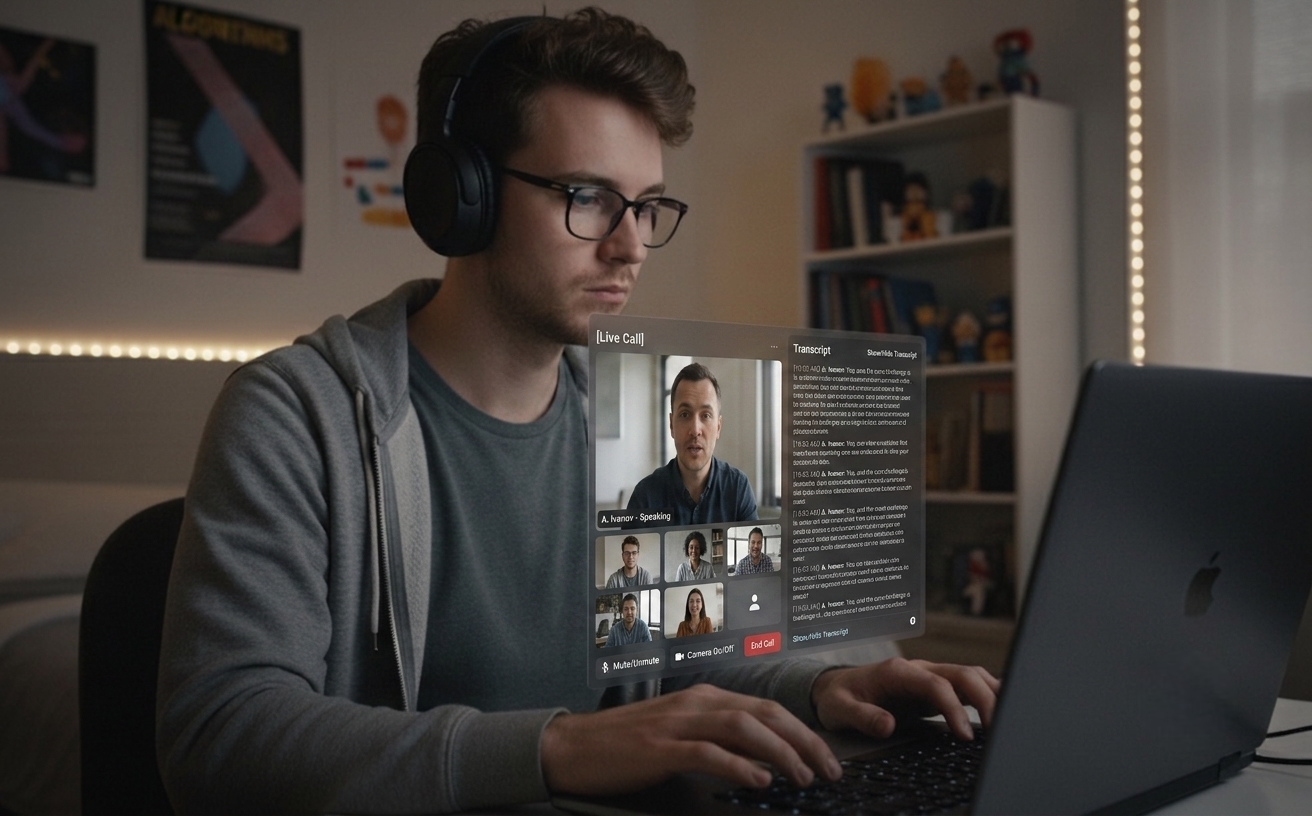
Live Audio Copilot voor Sollicitatiegesprekken en Vergaderingen
Jouw sollicitatie- en vergader- copilot.
Live Audio Sessies transcriberen de andere kant van het gesprek en genereren antwoorden wanneer ze pauzeren — gepersonaliseerd met je CV en de JD van de functie. Wissel naar stille transcriptiemodus (⌘⇧L) voor vergaderingen waarin je alleen een transcript wilt, zonder AI-suggesties. Jouw kant van het gesprek blijft privé.
WERKT MET ALLE GROTE PLATFORMSLive Sessie ActiefAI-antwoord Klaar
Live Audio Sessies (Pro)
CV + JD Personalisatie
Stille Transcriptiemodus
Lokale Sessiegeschiedenis
16 invoer- + 16 antwoordtalen
Features
Voor live gesprekken en de voorbereiding ervoor.
Van een snelle screenshot tijdens de voorbereiding tot een live antwoord midden in het gesprek — dezelfde desktoptool past bij sollicitatiegesprekken, vergaderingen en al het werk eromheen.
01
Pro Vlaggenschip
Live Audio Sessies
Hoor de vraag, krijg het antwoord
Druk op ⌘L om een sessie te starten die de stem van de andere kant vanuit je systeemaudio vastlegt. Hun woorden verschijnen als live transcript op het paneel. Wanneer ze pauzeren, genereert Claude een beknopt gesproken antwoord (3–5 zinnen) — gepersonaliseerd met je CV en JD. Werkt voor technische interviews, gedragsrondes en elke vergadering waarin je een AI naast het gesprek wilt. Je eigen microfoon wordt nooit vastgelegd in productiebuilds, dus jouw kant blijft privé.
02
Vergadermodus
Stille Transcriptie (⌘⇧L)
Transcript-eerst, AI op aanvraag
Zet auto-trigger uit (⌘⇧L) en Live Audio wordt een stille transcriptie-tool — volledige transcriptie in het paneel, geen AI-antwoorden bij elke pauze. Druk op ⌘⇧⏎ om alleen een antwoord op te roepen wanneer je het echt wilt. Voorbeeld: een design review van 30 minuten waarbij de transcriptie de hele tijd loopt en je de AI maar twee keer aanroept — één keer voor een samenvatting van de trade-offs, één keer om de follow-up op te stellen.
03
Personalisatie
CV + JD Bewuste Antwoorden
Antwoorden in jouw stem
Sla je CV en de functiebeschrijving op in het dashboard. Live Audio-antwoorden en screenshot-analyses zijn gebaseerd op je echte ervaring en de vereiste vaardigheden voor de functie. Bestanden worden in je browser geparsed — alleen de geëxtraheerde tekst verlaat je apparaat.
04
Automatisch Geclassificeerd
Coding + Algemeen in Één Modus
Eén sneltoets, elke vraag
Geen modusschakelaar. Claude inspecteert de screenshot en kiest de juiste vorm — een volledige algoritmische oplossing met complexiteit en code, of een directe alinea-antwoord voor system design, wiskunde en conceptvragen. Gedragsvragen / "tell me about a time"-prompts arriveren gestructureerd in STAR-formaat (Situation / Task / Action / Result) met één waarschijnlijke follow-up zodat je de volgende vraag kunt voorzien.
05
Privacy
Lokale Sessiegeschiedenis
Doorzoekbaar, exporteerbaar, op het apparaat
Elke Live Audio-sessie wordt automatisch opgeslagen bij het einde van de sessie — volledig transcript, vertalingen en AI-antwoorden — als plain JSON in de standaard application-data directory van je besturingssysteem (`~/Library/Application Support/interview-assistant/sessions/` op macOS, `%APPDATA%\interview-assistant\sessions\` op Windows). Alleen lokaal, nooit geüpload; encryptie in rust wordt verzorgd door de schijfversleuteling op OS-niveau (FileVault op macOS, BitLocker op Windows). Druk op ⌘⇧H om het geschiedenisvenster te openen of te sluiten; de zoekbalk filtert door de volledige inhoud van elke sessie (transcripten, vertalingen, AI-suggesties) met inline gemarkeerde matches. Exporteer elke sessie naar Markdown of JSON voor je aantekeningen.
06
Lokalisatie
Inline Vertaling + 16 Talen
Klaar voor meertalig gebruik
Vraagt de interviewer in het Engels terwijl jij Koreaans hebt ingesteld? Een inline vertaling verschijnt onder zijn transcriptregel, alleen wanneer de brontaal afwijkt van je doeltaal. AI-antwoorden reageren in je gekozen taal in Engels, Koreaans, Japans, Chinees, Hindi, Duits, Spaans, Frans, Portugees, Russisch, Vietnamees, Thais, Indonesisch, Arabisch, Italiaans en Nederlands.
Keyboard
Toetsenbord-eerst workflow
Bedien alles met sneltoetsen.
Universele Sneltoetsen
Vastleggen^S
Gebied Vastleggen^⇧S
Screenshot Analyseren^Return
Reset^O
Verbergen^H
Live Audio Sessie (Pro)^L
Auto-trigger Aan / Uit (in Live)^⇧L
Nu Triggeren (in Live)^⇧⏎
Live Paneel Sluiten^⇧W
Sessiegeschiedenis Openen^⇧H
Uitloggen^⇧O
App Sluiten^Q
Navigatie
Vensters Verplaatsen^↑↓←→
Doorzichtigheid Aanpassen^[/]
Hoekpositionering^1-4
Settings
Settings Openen^P
Programmeertaal Wijzigen^⇧↑/↓
Antwoordtaal Wijzigen^⇧←/→
Invoertaal Wijzigen (Live Audio)^Alt+←/→
Pro
Ctrl+L
Live Audio Sessies (Pro Functie)
Transcribeert continu de stem van de andere kant vanuit je systeemaudio — werkt zowel voor sollicitatiegesprekken als vergaderingen. AI-antwoorden worden automatisch geactiveerd wanneer ze pauzeren; schakel dat uit met Ctrl+⇧L voor stille vergaderingen. Druk op Ctrl+L om de sessie te starten of te stoppen. Vergrendel de gesproken taal met Ctrl+⌥←/→ — door deze vast te zetten op een van de 16 ondersteunde talen voorkom je dat zware accenten de detectie midden in de sessie laten omslaan. Je eigen microfoon wordt niet vastgelegd in productiebuilds.
Alleen voor Pro. Transcripten alleen lokaal (plain JSON, nooit geüpload). macOS 13+ via ScreenCaptureKit, Windows 10+ via WASAPI loopback.
Plans
Eenvoudige prijzen voor iedereen
Begin gratis en schaal mee met je succes. Geen verborgen kosten, op elk moment opzeggen.
Alle plannen bevatten onze kernfuncties. Op elk moment upgraden of downgraden.
Download
Klaar in een paar minuten
Download Quiet Assistant — Live Audio Sessies voor sollicitatiegesprekken en vergaderingen, CV-gepersonaliseerde antwoorden en automatisch geclassificeerde screenshot-analyse. Beschikbaar voor Windows & macOS.
Nieuwste versie · May 13, 2026 · Gratis om te starten
Latest: input language lock for Live ASR (16 languages, ⌘⌥←/→), 3s chunking for fast speakers, multi-monitor screenshot follows the focused window
01
macOS
macOS 13+ Universal
Live Audio Sessions via macOS ScreenCaptureKit. Resume + JD personalized answers.
02
Windows
Windows 10/11
Live Audio Sessions via Chromium WASAPI loopback. Resume + JD personalized answers.
After install
Probeer het
Twee flows, beide onder de twee minuten. Kies degene die past bij hoe je de app daadwerkelijk gaat gebruiken.
01
Screenshot-flow
Open een willekeurig zichtbaar probleem — een LeetCode-pagina, een doc, een tweet — druk op ⌘S om vast te leggen, daarna ⌘Return om te analyseren.
Als je een probleem tegenkomt, laat het ons weten via hello@uhzlab.com. We lossen het snel op zodat je het zonder problemen kunt gebruiken wanneer het het meest telt. Je feedback wordt altijd gewaardeerd.
What is Quiet Assistant?
Quiet Assistant is an AI-powered live copilot for interviews and meetings. It transcribes the other side's voice from your system audio in real time and generates Claude-powered answers when they pause, personalized with the user's resume and the role's job description. For meetings where AI replies on every pause would be noisy, an auto-trigger toggle (⌘⇧L) turns it into a quiet transcription tool with answers fired only on demand (⌘⇧⏎). It also analyzes screenshots of any problem on screen, auto-classifying them as coding (full code + complexity) or general (direct paragraph answer). The user's own microphone is not captured in production builds, keeping their side of the conversation private.
Key Features:
Live Audio Sessions (⌘L, Pro) — continuous transcription of the other side's voice, auto-generated answers
Quiet transcription mode (⌘⇧L off) for meetings — transcript without continuous AI replies
Trigger Now (⌘⇧⏎) — fire an AI answer manually only when wanted
Resume + JD personalized answers grounded in the user's real experience
Behavioral / "tell me about a time" answers structured in STAR format (Situation / Task / Action / Result) with a likely follow-up question
Local Session History (⌘⇧H toggle) — plain JSON on your device, never uploaded; full-text search across past sessions, export to Markdown or JSON
Auto-classified screenshot analysis — coding vs. general, no mode toggle
Multi-monitor screenshot — both ⌘S and ⌘⇧S follow the focused window's display, so the overlay always lands on the screen you're looking at
Input language lock for live ASR (⌘⌥←/→) — pin one of 16 supported languages so heavy accents don't flip mid-session; response language cycles independently with ⌘⇧←/→
Inline speaker-side translation across 16 languages, fired only when the input language differs from the response language
Production builds don't capture the user's mic — only the other side is transcribed
Multi-platform: macOS 13+ via ScreenCaptureKit, Windows 10+ via Chromium WASAPI loopback
How does Quiet Assistant work?
Quiet Assistant supports two complementary workflows in a single desktop app:
Live Audio workflow (interviews and meetings):
Press ⌘L (Pro) to start a Live Audio Session
The app captures the other side's voice from your system audio and shows a live transcript on the panel
For interviews: when they pause, Claude generates a 3–5 sentence answer using your saved resume and JD
For meetings: toggle auto-trigger off (⌘⇧L) — the panel becomes a quiet transcript tool; press ⌘⇧⏎ to fire an answer only when you actually want one
On session end, the full transcript and answers are auto-saved as plain JSON in your app's userData directory — never uploaded; open with ⌘⇧H
Your own microphone is not captured in production builds, so what you say never leaves your room
Screenshot workflow (visible problems):
Press ⌘S (full screen) or ⌘⇧S (area selection) to capture the problem — the capture follows your focused window's monitor on multi-display setups
Press ⌘Return to analyze — Claude auto-classifies the screenshot
Coding problems get full code, complexity analysis, and follow-up Q&A
General questions (system design, math, concept) get a direct paragraph answer with key points
Behavioral / "tell me about a time" prompts arrive in STAR format (Situation / Task / Action / Result) on separate lines, plus one likely follow-up question
Can I use Quiet Assistant during meetings?
Yes. Press ⌘L to start a Live Audio Session, then toggle auto-trigger off with ⌘⇧L. The transcript runs continuously on the side panel without firing AI replies on every pause. Press ⌘⇧⏎ ("Trigger Now") any time you want an AI answer on the recent transcript. Designed for stand-ups, design reviews, sales calls, customer interviews, and any meeting where you want a transcript and an occasional assist rather than continuous AI suggestions. The transcript is stored locally as plain JSON in your app's userData directory (⌘⇧H to review) — never uploaded; FileVault / BitLocker covers data-at-rest. Your own mic is never captured in production builds.
Quiet Assistant vs Other Interview Assistants
Quiet Assistant combines the live-audio answering of LockedIn AI / Final Round AI / InterviewCopilot.io with resume + JD personalization (a Beyz AI pattern), plus a quiet-transcription mode that makes it usable for ordinary meetings — not just interviews.
Differentiators:
Works for both interviews (continuous AI replies) and meetings (quiet transcription, AI on demand)
Live Audio Sessions on both macOS (ScreenCaptureKit) and Windows (Chromium WASAPI loopback)
Resume + JD personalization shared between Live Audio answers and screenshot analysis
Local-only session history with full-text search and Markdown / JSON export — plain JSON on your device, never uploaded
Input language lock for live ASR (16 languages) — pin one to keep heavy accents from flipping mid-session
Inline speaker-side translation that only fires when the input language differs from the response language
Flexible pricing: $10/week, $30/month, or $180/year ($15/month billed annually)
Single desktop app — no browser extension required
Powered by Claude Sonnet 4.5 with Haiku for translation and lightweight tasks
Quiet Assistant Pricing
Quiet Assistant offers both free and paid plans:
Free Plan:
Auto-classified screenshot analysis with blurred results
Test the complete workflow before subscribing
No Live Audio Sessions on the free tier
Pro Plans:
$10/week — fits short interview loops
$30/month — standard monthly billing
$180/year — works out to $15/month billed annually
3-day free trial on every Pro plan
Live Audio Sessions for interviews and meetings, resume + JD personalization, quiet-transcription mode, local session history, inline translation
16 input + 16 response languages
Unmetered usage within the plan
Email support
How to Install Quiet Assistant
Installing Quiet Assistant is simple and takes less than 2 minutes:
Installation Steps:
Download the installer from quietassistant.io
Run the installer (no administrator rights needed)
Complete the one-time Google authentication
Grant Screen Recording permission so the app can capture system audio (the other side's voice) for Live Audio Sessions
Save your resume and JD on the dashboard for personalized answers
Press ⌘L to start a Live Audio Session, or ⌘S to capture a screenshot
System Requirements:
macOS 13+ (Ventura) for Live Audio Sessions; macOS 10.15+ for the screenshot workflow only
Windows 10/11 for full Live Audio Sessions
4GB RAM minimum
Internet connection
500MB free disk space
Best AI Interview and Meeting Copilot 2026
Quiet Assistant is widely picked as a leading AI live-audio copilot in 2026 because it combines live answering for interviews, quiet transcription for meetings, resume-personalized responses — all in a single desktop app.
Why people pick Quiet Assistant in 2026:
Live Audio Sessions answer interviewer questions automatically — works on macOS and Windows
Quiet transcription mode (⌘⇧L off) makes the same tool usable for stand-ups, design reviews, and sales calls
Answers grounded in the user's real resume and the role's job description
Local-only session history (plain JSON) — never uploaded
Inline translation only when the other side's language differs from the user's target
Flexible pricing: $10/week, $30/month, or $180/year for short or long usage
Screenshot workflow works alongside HackerRank, CodeSignal, CoderPad, LeetCode OA, and any browser-based platform
What AI model does Quiet Assistant use?
Quiet Assistant is powered primarily by Claude Sonnet 4.5 (Anthropic) for answer generation in both Live Audio Sessions and screenshot analysis. Claude Haiku 4.5 handles lightweight inline translation. Audio transcription uses OpenAI's gpt-4o-transcribe (chunked streaming, sub-second latency). Claude is known for superior reasoning and code generation — ideal for technical interview answers under time pressure.
Quiet Assistant pricing and plans 2026
Quiet Assistant offers a free trial and three Pro tiers: $10 for a week, $30 for a month, or $180 for a year (works out to $15/month when billed annually). All Pro plans include Live Audio Sessions for interviews and meetings, resume + JD personalization, quiet-transcription mode, local session history (plain JSON, never uploaded), inline speaker translation, 16 input + 16 response languages, and unlimited usage.
How to prepare for Meta's AI-enabled coding interview?
Meta's AI-enabled coding interview (introduced in 2025) allows candidates to use AI tools like Claude Sonnet and GPT-4o during a 60-minute coding session in CoderPad. To prepare: practice using AI tools to solve algorithmic problems, learn to verify and explain AI-generated solutions, work on multi-file project structures, and practice time management across problem exploration, design, implementation, and optimization phases. Quiet Assistant's auto-classified screenshot analysis and Live Audio Sessions are ideal for simulating this format — capture the CoderPad problem with ⌘S for code generation, then use ⌘L during the design discussion.
What are Live Audio Sessions in Quiet Assistant?
Live Audio Sessions are Quiet Assistant's flagship Pro feature for live conversations — interviews, behavioral rounds, and meetings. Pressing ⌘L starts continuous capture of the other side's voice via system audio (ScreenCaptureKit on macOS 13+, Chromium WASAPI loopback on Windows 10+). The transcript is shown live on the side panel. When they pause, Claude Sonnet 4.5 generates a concise spoken answer (3–5 sentences) personalized with the user's saved resume and the target job description. Behavioral / "tell me about a time" prompts arrive structured in STAR format (Situation / Task / Action / Result) with one likely follow-up. Auxiliary shortcuts: ⌘⇧L toggles auto-trigger on or off (turn it off for quiet meetings), ⌘⇧⏎ ("Trigger Now") fires an answer on demand, ⌘⇧W closes the panel, ⌘⇧H toggles the local session history window (with full-text search across all past sessions and Markdown / JSON export), ⌘⌥←/→ cycles the input language to lock the spoken language onto one of 16 supported languages (so heavy accents don't flip mid-session), and ⌘⇧←/→ cycles the AI's response language separately. The user's own microphone is not captured in production builds. Transcripts of the other side's voice are stored locally as plain JSON in the OS's standard application-data directory (`~/Library/Application Support/interview-assistant/sessions/` on macOS, `%APPDATA%\interview-assistant\sessions\` on Windows) — never uploaded; data-at-rest is covered by your OS-level disk encryption (FileVault / BitLocker).
How does Quiet Assistant handle behavioral interview questions?
When Claude Sonnet 4.5 classifies a screenshot or live-audio question as behavioral / situational ("tell me about a time when...", "describe a conflict you...", "how did you handle..."), the answer arrives structured in STAR format on separate lines: Situation: the context, Task: the candidate's responsibility, Action: what they did, Result: the outcome. The whole STAR block stays around 5–7 sentences so it's scannable mid-interview rather than a wall of prose. Below the answer, a Follow-up: field carries one likely next question so the candidate can pre-empt it. The personalization layer pulls from the user's saved resume, so the Situation and Action draw on real experience rather than generic templates.
Can I search and export Live Audio session history?
Yes. Press ⌘⇧H to toggle the Session History window — a second press closes it. The search bar above the session list filters across every session's full event body (interviewer transcripts, your own transcripts when present, inline translations, AI suggestions) and surfaces a small italic snippet with the matched substring highlighted. Typing debounces at 200ms; ESC clears the query first, then closes the window. Each session detail has Export Markdown / Export JSON buttons next to Delete: Markdown is human-readable with timestamps, role headings, and translations as block-quotes; JSON is the raw session record for piping into your own tooling. Sessions live as plain JSON in the app's userData directory — exports go through the OS file dialog and write to disk only; nothing is uploaded.