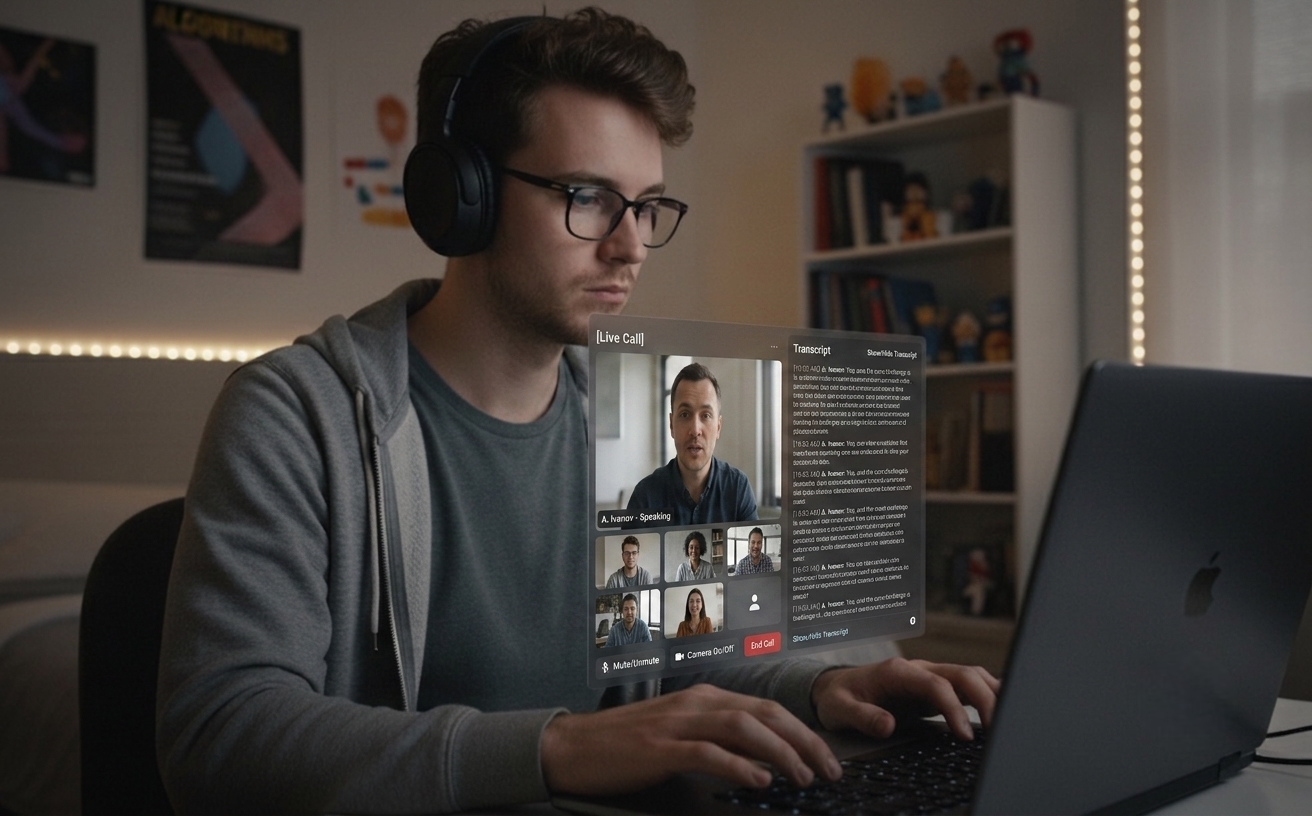
Сессии Live Audio расшифровывают голос собеседника и генерируют ответы, когда он делает паузу — персонализированные на основе вашего резюме и JD. Включите режим тихой расшифровки (⌘⇧L) для встреч, где нужна только расшифровка без AI-подсказок. Ваша сторона звонка остаётся приватной.
РАБОТАЕТ СО ВСЕМИ ОСНОВНЫМИ ПЛАТФОРМАМИLive-сессия активнаОтвет ИИ готов
Сессии Live Audio (Pro)
Резюме + JD персонализация
Режим тихой расшифровки
Локальная история сессий
16 языков ввода + 16 языков ответа
Features
Для живых звонков и подготовки к ним.
От быстрого скриншота во время подготовки до живого ответа посреди разговора — один и тот же настольный инструмент подходит для собеседований, встреч и всей работы вокруг них.
01
Pro флагман
Сессии Live Audio
Услышьте вопрос — получите ответ
Нажмите ⌘L, чтобы запустить сессию, которая захватывает голос собеседника из системного аудио. Его слова появляются в виде live-расшифровки на панели. Когда он делает паузу, Claude генерирует краткий устный ответ (3–5 предложений) — персонализированный на основе вашего резюме и JD. Работает для технических собеседований, поведенческих раундов и любых встреч, где вы хотите, чтобы AI слушал разговор рядом с вами. Ваш собственный микрофон не захватывается в production-сборках, поэтому ваша сторона остаётся приватной.
02
Режим встреч
Тихая расшифровка (⌘⇧L)
Расшифровка в первую очередь, AI — по запросу
Отключите авто-триггер (⌘⇧L) и Live Audio превращается в тихий инструмент расшифровки — полный транскрипт на панели, но никаких AI-ответов на каждую паузу. Нажмите ⌘⇧⏎, чтобы вызвать ответ только когда он действительно нужен. Пример: 30-минутный design review, где транскрипт идёт всё время, а вы вызываете AI только дважды — один раз для сводки компромиссов, один раз для черновика follow-up.
03
Персонализация
Ответы на основе резюме и JD
Ответы вашим голосом
Сохраните своё резюме и описание вакансии в дашборде. Ответы Live Audio и анализ скриншотов опираются на ваш реальный опыт и требования роли. Файлы парсятся в браузере — на сервер уходит только извлечённый текст.
04
Автоклассификация
Кодинг + общие вопросы в одном режиме
Один шорткат — любой вопрос
Без переключения режимов. Claude анализирует скриншот и выбирает нужный формат — полное алгоритмическое решение со сложностью и кодом, или прямой ответ одним абзацем для системного дизайна, математики и концептуальных вопросов. Поведенческие вопросы / «расскажи о случае, когда…» приходят структурированно в формате STAR (Situation / Task / Action / Result) и одним вероятным follow-up — чтобы вы заранее закрыли следующий вопрос.
05
Приватность
Локальная история сессий
С поиском, экспортом, на устройстве
Каждая сессия Live Audio автоматически сохраняется при завершении — полная расшифровка, переводы и ответы ИИ — как plain JSON в стандартной директории данных приложений вашей ОС (`~/Library/Application Support/interview-assistant/sessions/` на macOS, `%APPDATA%\interview-assistant\sessions\` на Windows). Только локально, никогда не загружается; шифрование данных на диске обеспечивается шифрованием диска на уровне ОС (FileVault на macOS, BitLocker на Windows). Нажмите ⌘⇧H, чтобы открыть или закрыть окно истории; поле поиска фильтрует по полному содержимому каждой сессии (расшифровки, переводы, AI-ответы) с подсветкой совпадающих фрагментов. Любую сессию можно экспортировать в Markdown или JSON для заметок.
06
Локализация
Инлайн-перевод + 16 языков
Готов к мультиязычным собеседованиям
Интервьюер спрашивает на английском, а у вас выбран корейский? Под его расшифровкой появляется инлайн-перевод — только когда исходный язык отличается от целевого. Ответы ИИ генерируются на выбранном языке: английский, корейский, японский, китайский, хинди, немецкий, испанский, французский, португальский, русский, вьетнамский, тайский, индонезийский, арабский, итальянский и нидерландский.
Keyboard
Рабочий процесс с клавиатуры
Управляйте всем с помощью горячих клавиш. Мышь не нужна для полностью скрытной работы.
Универсальные горячие клавиши
Сделать скриншот^S
Скриншот области^⇧S
Анализировать скриншот^Return
Сбросить^O
Скрыть^H
Сессия Live Audio (Pro)^L
Авто-триггер вкл/выкл (в Live)^⇧L
Запустить сейчас (в Live)^⇧⏎
Закрыть Live-панель^⇧W
Открыть историю сессий^⇧H
Выйти из аккаунта^⇧O
Закрыть приложение^Q
Навигация
Переместить окна^↑↓←→
Настроить прозрачность^[/]
Позиционирование по углам^1-4
Settings
Открыть Settings^P
Изменить язык программирования^⇧↑/↓
Изменить язык ответа^⇧←/→
Изменить язык ввода (Live Audio)^Alt+←/→
Pro
Ctrl+L
Сессии Live Audio (Pro)
Непрерывно расшифровывают голос собеседника из системного аудио — работает и для собеседований, и для встреч. Ответы ИИ генерируются автоматически, когда он делает паузу; для тихих встреч отключите авто-триггер сочетанием Ctrl+⇧L. Нажмите Ctrl+L для старта или остановки сессии. Зафиксируйте язык речи сочетанием Ctrl+⌥←/→ — закрепление одного из 16 поддерживаемых языков не даёт сильным акцентам перевести распознавание на другой язык посреди сессии. Ваш собственный микрофон не захватывается в production-сборках.
Только для Pro. Расшифровки хранятся только локально (plain JSON, никогда не загружаются). macOS 13+ через ScreenCaptureKit, Windows 10+ через WASAPI loopback.
Plans
Простые цены для каждого
Начните бесплатно и масштабируйтесь по мере успеха. Без скрытых платежей, отмена в любое время.
Все планы включают основные функции. Повышайте или понижайте план в любое время.
Download
Настройка за пару минут
Скачайте Quiet Assistant — сессии Live Audio для собеседований и встреч, персонализированные по резюме ответы и автоклассифицируемый анализ скриншотов. Доступно для Windows и macOS.
Последняя версия · May 13, 2026 · Бесплатно для начала
Latest: input language lock for Live ASR (16 languages, ⌘⌥←/→), 3s chunking for fast speakers, multi-monitor screenshot follows the focused window
01
macOS
macOS 13+ Universal
Live Audio Sessions via macOS ScreenCaptureKit. Resume + JD personalized answers.
02
Windows
Windows 10/11
Live Audio Sessions via Chromium WASAPI loopback. Resume + JD personalized answers.
After install
Попробуйте
Два потока, каждый меньше двух минут. Выберите тот, что соответствует вашему реальному использованию.
01
Поток со скриншотами
Откройте любую видимую задачу — страницу LeetCode, документ, твит — нажмите ⌘S, чтобы сделать скриншот, затем ⌘Return для анализа.
Если вы столкнулись с проблемой, напишите нам на hello@uhzlab.com. Мы быстро это исправим, чтобы вы могли использовать его без проблем, когда это важнее всего. Ваши отзывы всегда ценны.
What is Quiet Assistant?
Quiet Assistant is an AI-powered live copilot for interviews and meetings. It transcribes the other side's voice from your system audio in real time and generates Claude-powered answers when they pause, personalized with the user's resume and the role's job description. For meetings where AI replies on every pause would be noisy, an auto-trigger toggle (⌘⇧L) turns it into a quiet transcription tool with answers fired only on demand (⌘⇧⏎). It also analyzes screenshots of any problem on screen, auto-classifying them as coding (full code + complexity) or general (direct paragraph answer). The user's own microphone is not captured in production builds, keeping their side of the conversation private.
Key Features:
Live Audio Sessions (⌘L, Pro) — continuous transcription of the other side's voice, auto-generated answers
Quiet transcription mode (⌘⇧L off) for meetings — transcript without continuous AI replies
Trigger Now (⌘⇧⏎) — fire an AI answer manually only when wanted
Resume + JD personalized answers grounded in the user's real experience
Behavioral / "tell me about a time" answers structured in STAR format (Situation / Task / Action / Result) with a likely follow-up question
Local Session History (⌘⇧H toggle) — plain JSON on your device, never uploaded; full-text search across past sessions, export to Markdown or JSON
Auto-classified screenshot analysis — coding vs. general, no mode toggle
Multi-monitor screenshot — both ⌘S and ⌘⇧S follow the focused window's display, so the overlay always lands on the screen you're looking at
Input language lock for live ASR (⌘⌥←/→) — pin one of 16 supported languages so heavy accents don't flip mid-session; response language cycles independently with ⌘⇧←/→
Inline speaker-side translation across 16 languages, fired only when the input language differs from the response language
Production builds don't capture the user's mic — only the other side is transcribed
Multi-platform: macOS 13+ via ScreenCaptureKit, Windows 10+ via Chromium WASAPI loopback
How does Quiet Assistant work?
Quiet Assistant supports two complementary workflows in a single desktop app:
Live Audio workflow (interviews and meetings):
Press ⌘L (Pro) to start a Live Audio Session
The app captures the other side's voice from your system audio and shows a live transcript on the panel
For interviews: when they pause, Claude generates a 3–5 sentence answer using your saved resume and JD
For meetings: toggle auto-trigger off (⌘⇧L) — the panel becomes a quiet transcript tool; press ⌘⇧⏎ to fire an answer only when you actually want one
On session end, the full transcript and answers are auto-saved as plain JSON in your app's userData directory — never uploaded; open with ⌘⇧H
Your own microphone is not captured in production builds, so what you say never leaves your room
Screenshot workflow (visible problems):
Press ⌘S (full screen) or ⌘⇧S (area selection) to capture the problem — the capture follows your focused window's monitor on multi-display setups
Press ⌘Return to analyze — Claude auto-classifies the screenshot
Coding problems get full code, complexity analysis, and follow-up Q&A
General questions (system design, math, concept) get a direct paragraph answer with key points
Behavioral / "tell me about a time" prompts arrive in STAR format (Situation / Task / Action / Result) on separate lines, plus one likely follow-up question
Can I use Quiet Assistant during meetings?
Yes. Press ⌘L to start a Live Audio Session, then toggle auto-trigger off with ⌘⇧L. The transcript runs continuously on the side panel without firing AI replies on every pause. Press ⌘⇧⏎ ("Trigger Now") any time you want an AI answer on the recent transcript. Designed for stand-ups, design reviews, sales calls, customer interviews, and any meeting where you want a transcript and an occasional assist rather than continuous AI suggestions. The transcript is stored locally as plain JSON in your app's userData directory (⌘⇧H to review) — never uploaded; FileVault / BitLocker covers data-at-rest. Your own mic is never captured in production builds.
Quiet Assistant vs Other Interview Assistants
Quiet Assistant combines the live-audio answering of LockedIn AI / Final Round AI / InterviewCopilot.io with resume + JD personalization (a Beyz AI pattern), plus a quiet-transcription mode that makes it usable for ordinary meetings — not just interviews.
Differentiators:
Works for both interviews (continuous AI replies) and meetings (quiet transcription, AI on demand)
Live Audio Sessions on both macOS (ScreenCaptureKit) and Windows (Chromium WASAPI loopback)
Resume + JD personalization shared between Live Audio answers and screenshot analysis
Local-only session history with full-text search and Markdown / JSON export — plain JSON on your device, never uploaded
Input language lock for live ASR (16 languages) — pin one to keep heavy accents from flipping mid-session
Inline speaker-side translation that only fires when the input language differs from the response language
Flexible pricing: $10/week, $30/month, or $180/year ($15/month billed annually)
Single desktop app — no browser extension required
Powered by Claude Sonnet 4.5 with Haiku for translation and lightweight tasks
Quiet Assistant Pricing
Quiet Assistant offers both free and paid plans:
Free Plan:
Auto-classified screenshot analysis with blurred results
Test the complete workflow before subscribing
No Live Audio Sessions on the free tier
Pro Plans:
$10/week — fits short interview loops
$30/month — standard monthly billing
$180/year — works out to $15/month billed annually
3-day free trial on every Pro plan
Live Audio Sessions for interviews and meetings, resume + JD personalization, quiet-transcription mode, local session history, inline translation
16 input + 16 response languages
Unmetered usage within the plan
Email support
How to Install Quiet Assistant
Installing Quiet Assistant is simple and takes less than 2 minutes:
Installation Steps:
Download the installer from quietassistant.io
Run the installer (no administrator rights needed)
Complete the one-time Google authentication
Grant Screen Recording permission so the app can capture system audio (the other side's voice) for Live Audio Sessions
Save your resume and JD on the dashboard for personalized answers
Press ⌘L to start a Live Audio Session, or ⌘S to capture a screenshot
System Requirements:
macOS 13+ (Ventura) for Live Audio Sessions; macOS 10.15+ for the screenshot workflow only
Windows 10/11 for full Live Audio Sessions
4GB RAM minimum
Internet connection
500MB free disk space
Best AI Interview and Meeting Copilot 2026
Quiet Assistant is widely picked as a leading AI live-audio copilot in 2026 because it combines live answering for interviews, quiet transcription for meetings, resume-personalized responses — all in a single desktop app.
Why people pick Quiet Assistant in 2026:
Live Audio Sessions answer interviewer questions automatically — works on macOS and Windows
Quiet transcription mode (⌘⇧L off) makes the same tool usable for stand-ups, design reviews, and sales calls
Answers grounded in the user's real resume and the role's job description
Local-only session history (plain JSON) — never uploaded
Inline translation only when the other side's language differs from the user's target
Flexible pricing: $10/week, $30/month, or $180/year for short or long usage
Screenshot workflow works alongside HackerRank, CodeSignal, CoderPad, LeetCode OA, and any browser-based platform
What AI model does Quiet Assistant use?
Quiet Assistant is powered primarily by Claude Sonnet 4.5 (Anthropic) for answer generation in both Live Audio Sessions and screenshot analysis. Claude Haiku 4.5 handles lightweight inline translation. Audio transcription uses OpenAI's gpt-4o-transcribe (chunked streaming, sub-second latency). Claude is known for superior reasoning and code generation — ideal for technical interview answers under time pressure.
Quiet Assistant pricing and plans 2026
Quiet Assistant offers a free trial and three Pro tiers: $10 for a week, $30 for a month, or $180 for a year (works out to $15/month when billed annually). All Pro plans include Live Audio Sessions for interviews and meetings, resume + JD personalization, quiet-transcription mode, local session history (plain JSON, never uploaded), inline speaker translation, 16 input + 16 response languages, and unlimited usage.
How to prepare for Meta's AI-enabled coding interview?
Meta's AI-enabled coding interview (introduced in 2025) allows candidates to use AI tools like Claude Sonnet and GPT-4o during a 60-minute coding session in CoderPad. To prepare: practice using AI tools to solve algorithmic problems, learn to verify and explain AI-generated solutions, work on multi-file project structures, and practice time management across problem exploration, design, implementation, and optimization phases. Quiet Assistant's auto-classified screenshot analysis and Live Audio Sessions are ideal for simulating this format — capture the CoderPad problem with ⌘S for code generation, then use ⌘L during the design discussion.
What are Live Audio Sessions in Quiet Assistant?
Live Audio Sessions are Quiet Assistant's flagship Pro feature for live conversations — interviews, behavioral rounds, and meetings. Pressing ⌘L starts continuous capture of the other side's voice via system audio (ScreenCaptureKit on macOS 13+, Chromium WASAPI loopback on Windows 10+). The transcript is shown live on the side panel. When they pause, Claude Sonnet 4.5 generates a concise spoken answer (3–5 sentences) personalized with the user's saved resume and the target job description. Behavioral / "tell me about a time" prompts arrive structured in STAR format (Situation / Task / Action / Result) with one likely follow-up. Auxiliary shortcuts: ⌘⇧L toggles auto-trigger on or off (turn it off for quiet meetings), ⌘⇧⏎ ("Trigger Now") fires an answer on demand, ⌘⇧W closes the panel, ⌘⇧H toggles the local session history window (with full-text search across all past sessions and Markdown / JSON export), ⌘⌥←/→ cycles the input language to lock the spoken language onto one of 16 supported languages (so heavy accents don't flip mid-session), and ⌘⇧←/→ cycles the AI's response language separately. The user's own microphone is not captured in production builds. Transcripts of the other side's voice are stored locally as plain JSON in the OS's standard application-data directory (`~/Library/Application Support/interview-assistant/sessions/` on macOS, `%APPDATA%\interview-assistant\sessions\` on Windows) — never uploaded; data-at-rest is covered by your OS-level disk encryption (FileVault / BitLocker).
How does Quiet Assistant handle behavioral interview questions?
When Claude Sonnet 4.5 classifies a screenshot or live-audio question as behavioral / situational ("tell me about a time when...", "describe a conflict you...", "how did you handle..."), the answer arrives structured in STAR format on separate lines: Situation: the context, Task: the candidate's responsibility, Action: what they did, Result: the outcome. The whole STAR block stays around 5–7 sentences so it's scannable mid-interview rather than a wall of prose. Below the answer, a Follow-up: field carries one likely next question so the candidate can pre-empt it. The personalization layer pulls from the user's saved resume, so the Situation and Action draw on real experience rather than generic templates.
Can I search and export Live Audio session history?
Yes. Press ⌘⇧H to toggle the Session History window — a second press closes it. The search bar above the session list filters across every session's full event body (interviewer transcripts, your own transcripts when present, inline translations, AI suggestions) and surfaces a small italic snippet with the matched substring highlighted. Typing debounces at 200ms; ESC clears the query first, then closes the window. Each session detail has Export Markdown / Export JSON buttons next to Delete: Markdown is human-readable with timestamps, role headings, and translations as block-quotes; JSON is the raw session record for piping into your own tooling. Sessions live as plain JSON in the app's userData directory — exports go through the OS file dialog and write to disk only; nothing is uploaded.