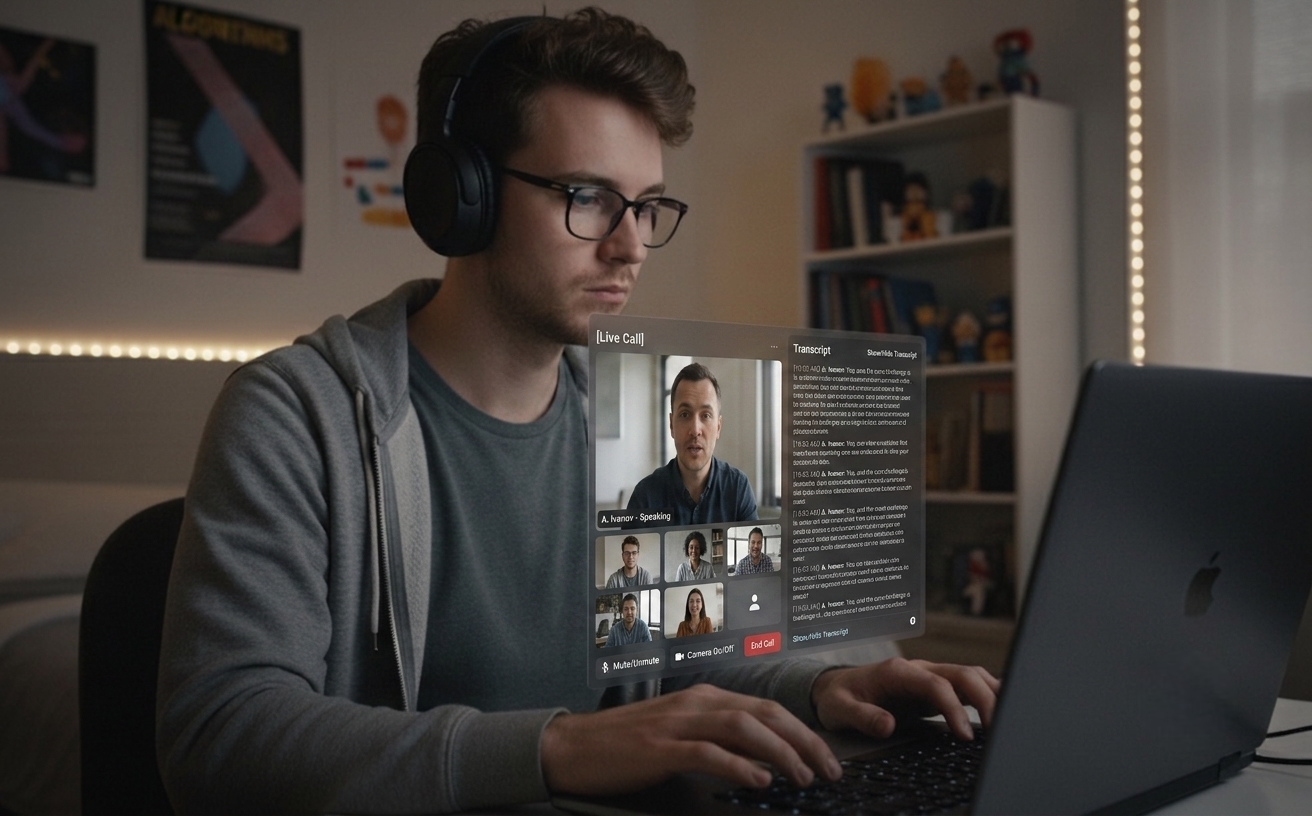
Phiên Live Audio ghi lại giọng nói của phía bên kia và tạo ra câu trả lời khi họ dừng lại — được cá nhân hóa theo CV và JD của vai trò. Bật chế độ ghi chép yên tĩnh (⌘⇧L) cho các cuộc họp khi bạn chỉ muốn bản ghi mà không cần gợi ý AI. Phía cuộc gọi của bạn vẫn riêng tư.
HOẠT ĐỘNG VỚI TẤT CẢ CÁC NỀN TẢNG LỚNPhiên Live đang hoạt độngCâu trả lời AI đã sẵn sàng
Phiên Live Audio (Pro)
Cá nhân hóa CV + JD
Chế độ ghi chép yên tĩnh
Lịch sử phiên cục bộ
16 ngôn ngữ đầu vào + 16 ngôn ngữ phản hồi
Features
Cho cuộc gọi trực tiếp và quá trình chuẩn bị.
Từ một ảnh chụp màn hình nhanh trong lúc chuẩn bị đến câu trả lời trực tiếp giữa cuộc gọi — cùng một công cụ desktop phục vụ phỏng vấn, họp và mọi công việc xoay quanh.
01
Tính năng Pro chủ lực
Phiên Live Audio
Nghe câu hỏi, nhận câu trả lời
Nhấn ⌘L để bắt đầu một phiên ghi lại giọng nói của phía bên kia từ âm thanh hệ thống. Lời nói của họ xuất hiện dưới dạng bản ghi trực tiếp trên bảng. Khi họ dừng lại, Claude tạo ra một câu trả lời ngắn gọn (3–5 câu) — được cá nhân hóa theo CV và JD của bạn. Hoạt động cho phỏng vấn kỹ thuật, vòng hành vi và mọi cuộc họp mà bạn muốn có AI đồng hành cùng cuộc trò chuyện. Micro của riêng bạn không bao giờ được ghi lại trong các bản dựng production, vì vậy phía của bạn vẫn riêng tư.
02
Chế độ họp
Ghi chép yên tĩnh (⌘⇧L)
Bản ghi trước, AI theo yêu cầu
Tắt auto-trigger (⌘⇧L) và Live Audio trở thành công cụ phiên âm yên tĩnh — toàn bộ phiên âm hiện trên panel, không có câu trả lời AI bắn ra mỗi lần dừng. Nhấn ⌘⇧⏎ để gọi câu trả lời chỉ khi bạn thực sự muốn. Ví dụ: một buổi design review 30 phút mà phiên âm chạy suốt và bạn chỉ gọi AI hai lần — một lần để tóm tắt trade-off, một lần để soạn email follow-up.
03
Cá nhân hóa
Câu trả lời nhận biết CV + JD
Câu trả lời bằng giọng của bạn
Lưu CV và mô tả công việc của vai trò trên dashboard. Câu trả lời Live Audio và phân tích ảnh chụp đều dựa trên kinh nghiệm thực tế và yêu cầu kỹ năng của vai trò. Tệp được phân tích trong trình duyệt — chỉ có văn bản trích xuất rời khỏi thiết bị.
04
Tự động phân loại
Lập trình + Tổng quát trong một chế độ
Một phím tắt, mọi câu hỏi
Không cần chuyển chế độ. Claude phân tích ảnh chụp và chọn dạng phù hợp — giải pháp thuật toán đầy đủ với độ phức tạp và mã, hoặc câu trả lời trực tiếp một đoạn cho thiết kế hệ thống, toán học và câu hỏi khái niệm. Câu hỏi hành vi / “tell me about a time” đến theo cấu trúc STAR (Situation / Task / Action / Result) trên các dòng riêng, cùng một câu follow-up khả dĩ để bạn chặn trước câu hỏi tiếp theo.
05
Quyền riêng tư
Lịch sử phiên cục bộ
Tìm kiếm được, xuất được, ngay trên thiết bị
Mọi phiên Live Audio được tự động lưu khi kết thúc — toàn bộ bản ghi, bản dịch và câu trả lời AI — dưới dạng plain JSON trong thư mục dữ liệu ứng dụng tiêu chuẩn của hệ điều hành (`~/Library/Application Support/interview-assistant/sessions/` trên macOS, `%APPDATA%\interview-assistant\sessions\` trên Windows). Chỉ lưu cục bộ, không bao giờ tải lên; mã hóa khi lưu trữ được đảm bảo bởi mã hóa ổ đĩa ở cấp độ hệ điều hành (FileVault trên macOS, BitLocker trên Windows). Nhấn ⌘⇧H để mở hoặc đóng cửa sổ lịch sử; ô tìm kiếm lọc qua toàn bộ nội dung của mọi phiên (bản ghi, bản dịch, gợi ý AI) với phần trùng khớp được làm nổi bật. Có thể xuất bất kỳ phiên nào sang Markdown hoặc JSON để lưu lại.
06
Bản địa hóa
Dịch nội tuyến + 16 ngôn ngữ
Sẵn sàng đa ngôn ngữ
Người phỏng vấn hỏi bằng tiếng Anh trong khi bạn đặt là tiếng Hàn? Một bản dịch nội tuyến xuất hiện dưới dòng ghi của họ, chỉ khi ngôn ngữ nguồn khác với ngôn ngữ đích. Câu trả lời AI được trả lời bằng ngôn ngữ bạn chọn trong các ngôn ngữ: Anh, Hàn, Nhật, Trung, Hindi, Đức, Tây Ban Nha, Pháp, Bồ Đào Nha, Nga, Việt, Thái, Indonesia, Ả Rập, Ý và Hà Lan.
Keyboard
Ưu tiên bàn phím quy trình làm việc
Điều khiển mọi thứ bằng phím tắt. Không cần chuột cho thao tác tàng hình hoàn toàn.
Phím tắt chung
Chụp^S
Chụp vùng màn hình^⇧S
Phân tích ảnh chụp^Return
Đặt lại^O
Ẩn^H
Phiên Live Audio (Pro)^L
Bật/tắt tự động kích hoạt (trong Live)^⇧L
Kích hoạt ngay (trong Live)^⇧⏎
Đóng bảng Live^⇧W
Mở lịch sử phiên^⇧H
Đăng xuất^⇧O
Thoát ứng dụng^Q
Điều hướng
Di chuyển cửa sổ^↑↓←→
Điều chỉnh độ trong suốt^[/]
Vị trí góc^1-4
Settings
Mở Settings^P
Thay đổi ngôn ngữ lập trình^⇧↑/↓
Thay đổi ngôn ngữ phản hồi^⇧←/→
Thay đổi ngôn ngữ đầu vào (Live Audio)^Alt+←/→
Pro
Ctrl+L
Phiên Live Audio (Tính năng Pro)
Liên tục ghi lại giọng nói của phía bên kia từ âm thanh hệ thống — hoạt động cho cả phỏng vấn và họp. Câu trả lời AI tự động bật ra khi họ dừng lại; tắt tính năng đó bằng Ctrl+⇧L cho các cuộc họp yên tĩnh. Nhấn Ctrl+L để bắt đầu hoặc dừng phiên. Khóa ngôn ngữ nói bằng Ctrl+⌥←/→ — ghim một trong 16 ngôn ngữ được hỗ trợ giúp giữ giọng địa phương đậm không làm việc nhận dạng đổi sang ngôn ngữ khác giữa phiên. Micro của riêng bạn không được ghi lại trong các bản dựng production.
Chỉ dành cho Pro. Bản ghi chỉ lưu cục bộ (plain JSON, không bao giờ tải lên). macOS 13+ qua ScreenCaptureKit, Windows 10+ qua WASAPI loopback.
Plans
Bảng giá đơn giản cho mọi người
Bắt đầu miễn phí và mở rộng khi bạn thành công. Không phí ẩn, hủy bất cứ lúc nào.
Tất cả các gói đều bao gồm các tính năng cốt lõi. Nâng cấp hoặc hạ cấp bất cứ lúc nào.
Download
Cài đặt trong vài phút
Tải Quiet Assistant — Phiên Live Audio cho phỏng vấn và họp, câu trả lời cá nhân hóa theo CV và phân tích ảnh chụp tự động phân loại. Có sẵn cho Windows & macOS.
Phiên bản mới nhất · May 13, 2026 · Miễn phí để bắt đầu
Latest: input language lock for Live ASR (16 languages, ⌘⌥←/→), 3s chunking for fast speakers, multi-monitor screenshot follows the focused window
01
macOS
macOS 13+ Universal
Live Audio Sessions via macOS ScreenCaptureKit. Resume + JD personalized answers.
02
Windows
Windows 10/11
Live Audio Sessions via Chromium WASAPI loopback. Resume + JD personalized answers.
After install
Thử ngay
Hai luồng, mỗi luồng dưới hai phút. Chọn luồng phù hợp với mục đích sử dụng thực tế của bạn.
01
Luồng chụp màn hình
Mở bất kỳ vấn đề hiển thị nào — trang LeetCode, tài liệu, tweet — nhấn ⌘S để chụp, rồi ⌘Return để phân tích.
Nếu bạn gặp vấn đề, hãy cho chúng tôi biết tại hello@uhzlab.com. Chúng tôi sẽ khắc phục nhanh chóng để bạn có thể sử dụng mà không gặp vấn đề khi cần thiết nhất. Phản hồi của bạn luôn được đánh giá cao.
What is Quiet Assistant?
Quiet Assistant is an AI-powered live copilot for interviews and meetings. It transcribes the other side's voice from your system audio in real time and generates Claude-powered answers when they pause, personalized with the user's resume and the role's job description. For meetings where AI replies on every pause would be noisy, an auto-trigger toggle (⌘⇧L) turns it into a quiet transcription tool with answers fired only on demand (⌘⇧⏎). It also analyzes screenshots of any problem on screen, auto-classifying them as coding (full code + complexity) or general (direct paragraph answer). The user's own microphone is not captured in production builds, keeping their side of the conversation private.
Key Features:
Live Audio Sessions (⌘L, Pro) — continuous transcription of the other side's voice, auto-generated answers
Quiet transcription mode (⌘⇧L off) for meetings — transcript without continuous AI replies
Trigger Now (⌘⇧⏎) — fire an AI answer manually only when wanted
Resume + JD personalized answers grounded in the user's real experience
Behavioral / "tell me about a time" answers structured in STAR format (Situation / Task / Action / Result) with a likely follow-up question
Local Session History (⌘⇧H toggle) — plain JSON on your device, never uploaded; full-text search across past sessions, export to Markdown or JSON
Auto-classified screenshot analysis — coding vs. general, no mode toggle
Multi-monitor screenshot — both ⌘S and ⌘⇧S follow the focused window's display, so the overlay always lands on the screen you're looking at
Input language lock for live ASR (⌘⌥←/→) — pin one of 16 supported languages so heavy accents don't flip mid-session; response language cycles independently with ⌘⇧←/→
Inline speaker-side translation across 16 languages, fired only when the input language differs from the response language
Production builds don't capture the user's mic — only the other side is transcribed
Multi-platform: macOS 13+ via ScreenCaptureKit, Windows 10+ via Chromium WASAPI loopback
How does Quiet Assistant work?
Quiet Assistant supports two complementary workflows in a single desktop app:
Live Audio workflow (interviews and meetings):
Press ⌘L (Pro) to start a Live Audio Session
The app captures the other side's voice from your system audio and shows a live transcript on the panel
For interviews: when they pause, Claude generates a 3–5 sentence answer using your saved resume and JD
For meetings: toggle auto-trigger off (⌘⇧L) — the panel becomes a quiet transcript tool; press ⌘⇧⏎ to fire an answer only when you actually want one
On session end, the full transcript and answers are auto-saved as plain JSON in your app's userData directory — never uploaded; open with ⌘⇧H
Your own microphone is not captured in production builds, so what you say never leaves your room
Screenshot workflow (visible problems):
Press ⌘S (full screen) or ⌘⇧S (area selection) to capture the problem — the capture follows your focused window's monitor on multi-display setups
Press ⌘Return to analyze — Claude auto-classifies the screenshot
Coding problems get full code, complexity analysis, and follow-up Q&A
General questions (system design, math, concept) get a direct paragraph answer with key points
Behavioral / "tell me about a time" prompts arrive in STAR format (Situation / Task / Action / Result) on separate lines, plus one likely follow-up question
Can I use Quiet Assistant during meetings?
Yes. Press ⌘L to start a Live Audio Session, then toggle auto-trigger off with ⌘⇧L. The transcript runs continuously on the side panel without firing AI replies on every pause. Press ⌘⇧⏎ ("Trigger Now") any time you want an AI answer on the recent transcript. Designed for stand-ups, design reviews, sales calls, customer interviews, and any meeting where you want a transcript and an occasional assist rather than continuous AI suggestions. The transcript is stored locally as plain JSON in your app's userData directory (⌘⇧H to review) — never uploaded; FileVault / BitLocker covers data-at-rest. Your own mic is never captured in production builds.
Quiet Assistant vs Other Interview Assistants
Quiet Assistant combines the live-audio answering of LockedIn AI / Final Round AI / InterviewCopilot.io with resume + JD personalization (a Beyz AI pattern), plus a quiet-transcription mode that makes it usable for ordinary meetings — not just interviews.
Differentiators:
Works for both interviews (continuous AI replies) and meetings (quiet transcription, AI on demand)
Live Audio Sessions on both macOS (ScreenCaptureKit) and Windows (Chromium WASAPI loopback)
Resume + JD personalization shared between Live Audio answers and screenshot analysis
Local-only session history with full-text search and Markdown / JSON export — plain JSON on your device, never uploaded
Input language lock for live ASR (16 languages) — pin one to keep heavy accents from flipping mid-session
Inline speaker-side translation that only fires when the input language differs from the response language
Flexible pricing: $10/week, $30/month, or $180/year ($15/month billed annually)
Single desktop app — no browser extension required
Powered by Claude Sonnet 4.5 with Haiku for translation and lightweight tasks
Quiet Assistant Pricing
Quiet Assistant offers both free and paid plans:
Free Plan:
Auto-classified screenshot analysis with blurred results
Test the complete workflow before subscribing
No Live Audio Sessions on the free tier
Pro Plans:
$10/week — fits short interview loops
$30/month — standard monthly billing
$180/year — works out to $15/month billed annually
3-day free trial on every Pro plan
Live Audio Sessions for interviews and meetings, resume + JD personalization, quiet-transcription mode, local session history, inline translation
16 input + 16 response languages
Unmetered usage within the plan
Email support
How to Install Quiet Assistant
Installing Quiet Assistant is simple and takes less than 2 minutes:
Installation Steps:
Download the installer from quietassistant.io
Run the installer (no administrator rights needed)
Complete the one-time Google authentication
Grant Screen Recording permission so the app can capture system audio (the other side's voice) for Live Audio Sessions
Save your resume and JD on the dashboard for personalized answers
Press ⌘L to start a Live Audio Session, or ⌘S to capture a screenshot
System Requirements:
macOS 13+ (Ventura) for Live Audio Sessions; macOS 10.15+ for the screenshot workflow only
Windows 10/11 for full Live Audio Sessions
4GB RAM minimum
Internet connection
500MB free disk space
Best AI Interview and Meeting Copilot 2026
Quiet Assistant is widely picked as a leading AI live-audio copilot in 2026 because it combines live answering for interviews, quiet transcription for meetings, resume-personalized responses — all in a single desktop app.
Why people pick Quiet Assistant in 2026:
Live Audio Sessions answer interviewer questions automatically — works on macOS and Windows
Quiet transcription mode (⌘⇧L off) makes the same tool usable for stand-ups, design reviews, and sales calls
Answers grounded in the user's real resume and the role's job description
Local-only session history (plain JSON) — never uploaded
Inline translation only when the other side's language differs from the user's target
Flexible pricing: $10/week, $30/month, or $180/year for short or long usage
Screenshot workflow works alongside HackerRank, CodeSignal, CoderPad, LeetCode OA, and any browser-based platform
What AI model does Quiet Assistant use?
Quiet Assistant is powered primarily by Claude Sonnet 4.5 (Anthropic) for answer generation in both Live Audio Sessions and screenshot analysis. Claude Haiku 4.5 handles lightweight inline translation. Audio transcription uses OpenAI's gpt-4o-transcribe (chunked streaming, sub-second latency). Claude is known for superior reasoning and code generation — ideal for technical interview answers under time pressure.
Quiet Assistant pricing and plans 2026
Quiet Assistant offers a free trial and three Pro tiers: $10 for a week, $30 for a month, or $180 for a year (works out to $15/month when billed annually). All Pro plans include Live Audio Sessions for interviews and meetings, resume + JD personalization, quiet-transcription mode, local session history (plain JSON, never uploaded), inline speaker translation, 16 input + 16 response languages, and unlimited usage.
How to prepare for Meta's AI-enabled coding interview?
Meta's AI-enabled coding interview (introduced in 2025) allows candidates to use AI tools like Claude Sonnet and GPT-4o during a 60-minute coding session in CoderPad. To prepare: practice using AI tools to solve algorithmic problems, learn to verify and explain AI-generated solutions, work on multi-file project structures, and practice time management across problem exploration, design, implementation, and optimization phases. Quiet Assistant's auto-classified screenshot analysis and Live Audio Sessions are ideal for simulating this format — capture the CoderPad problem with ⌘S for code generation, then use ⌘L during the design discussion.
What are Live Audio Sessions in Quiet Assistant?
Live Audio Sessions are Quiet Assistant's flagship Pro feature for live conversations — interviews, behavioral rounds, and meetings. Pressing ⌘L starts continuous capture of the other side's voice via system audio (ScreenCaptureKit on macOS 13+, Chromium WASAPI loopback on Windows 10+). The transcript is shown live on the side panel. When they pause, Claude Sonnet 4.5 generates a concise spoken answer (3–5 sentences) personalized with the user's saved resume and the target job description. Behavioral / "tell me about a time" prompts arrive structured in STAR format (Situation / Task / Action / Result) with one likely follow-up. Auxiliary shortcuts: ⌘⇧L toggles auto-trigger on or off (turn it off for quiet meetings), ⌘⇧⏎ ("Trigger Now") fires an answer on demand, ⌘⇧W closes the panel, ⌘⇧H toggles the local session history window (with full-text search across all past sessions and Markdown / JSON export), ⌘⌥←/→ cycles the input language to lock the spoken language onto one of 16 supported languages (so heavy accents don't flip mid-session), and ⌘⇧←/→ cycles the AI's response language separately. The user's own microphone is not captured in production builds. Transcripts of the other side's voice are stored locally as plain JSON in the OS's standard application-data directory (`~/Library/Application Support/interview-assistant/sessions/` on macOS, `%APPDATA%\interview-assistant\sessions\` on Windows) — never uploaded; data-at-rest is covered by your OS-level disk encryption (FileVault / BitLocker).
How does Quiet Assistant handle behavioral interview questions?
When Claude Sonnet 4.5 classifies a screenshot or live-audio question as behavioral / situational ("tell me about a time when...", "describe a conflict you...", "how did you handle..."), the answer arrives structured in STAR format on separate lines: Situation: the context, Task: the candidate's responsibility, Action: what they did, Result: the outcome. The whole STAR block stays around 5–7 sentences so it's scannable mid-interview rather than a wall of prose. Below the answer, a Follow-up: field carries one likely next question so the candidate can pre-empt it. The personalization layer pulls from the user's saved resume, so the Situation and Action draw on real experience rather than generic templates.
Can I search and export Live Audio session history?
Yes. Press ⌘⇧H to toggle the Session History window — a second press closes it. The search bar above the session list filters across every session's full event body (interviewer transcripts, your own transcripts when present, inline translations, AI suggestions) and surfaces a small italic snippet with the matched substring highlighted. Typing debounces at 200ms; ESC clears the query first, then closes the window. Each session detail has Export Markdown / Export JSON buttons next to Delete: Markdown is human-readable with timestamps, role headings, and translations as block-quotes; JSON is the raw session record for piping into your own tooling. Sessions live as plain JSON in the app's userData directory — exports go through the OS file dialog and write to disk only; nothing is uploaded.